Learning Windows 7: Watch TV Programming Without a TV Tuner

Even if your computer doesn’t have a TV tuner card, you can still watch broadcast television programming with Media Center in Windows 7. Today we take a look at some of the features and how to get started.

Earlier this week in another Learning Windows 7 post, we showed you how to set up live TV in Windows Media Center (WMC). Not everyone has a TV tuner card and maybe can’t install one…in a laptop or netbook for example.

Update: This feature may not be available in all countries. Users who are in the UK should be able to use Sky Player which integrates into WMC. If you’re in the US and don’t see this option, make sure you have all of the latest updates for WMC.

Internet TV

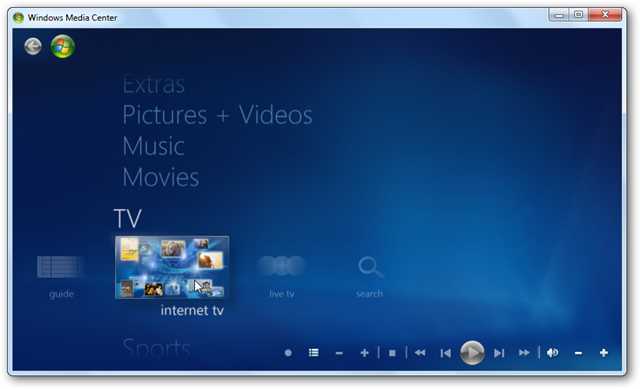
Open up WMC and scroll down to TV then over to Internet TV.
1tv

In the next screen, check that you accept the Terms of Service and click on Install.

2tv

The installation process begins…

3tv

Now you can begin browsing through the available programming, which varies from classics to the latest editions of your favorite news, Showtime and CBS shows.

4tv

Browse through Golden Globe winning shows and also Netflix (which requires a subscription).

5tv

Get the latest news and current events type programming such as 60 minutes and nightly news broadcasts.

6tv

CBS Classic is always a lot of fun too for checking out the old school shows.

6tv

Click on an episode to find out what it is about and its length…

7tv

If it’s your first time watching a show you may nee to install the latest version of Adobe Flash.

8tv

Now you can sit back and watch some of your favorite programming.

9tv

If you’re a fan of Desktop Gadgets, you can use the WMC one to scroll through shows from the gadget and launch them in WMC.

11tv

Conclusion

If you’re looking to watch TV on your computer, this is yet another way of quite a few methods, including several online options such as Hulu. This method is quick to setup and allows you to watch some limited programming on demand with WMC in Windows 7. Not all programs are full episodes, but does include clips from several of them. In the future we’ll be taking a look at some other types of Internet TV and video streaming options you can incorporate into WMC.

You might also want to check out Learning Windows 7: Setup Live TV in Windows Media Center

Got an opinion to share? Click here to join the discussion

Similar Articles Productive Geek Tips
Latest Software Reviews Tinyhacker Random Tips

Windows 7 way hotter than Vista off the line, now more popular than all OS X versions

We learned back in November that Windows 7 was having a much (much!) better first few days in retail than Vista did when it launched, but now that the system has had a full quarter and change to make an impression, it looks as if that growth isn’t slowing down. According to new figures from Net Application, Win7 is achieving a higher level of market penetration in a faster amount of time than Vista did; after a month, Vista was stuck at 0.93 percent, while Win7 nailed the 4 percent mark. After two months, Win7 jumped to 5.71 percent, while Vista was barely over 2 percent after the same amount of time. ‘Course, the newest version of Windows had a holiday season to help it out right from the get-go, but there’s still no denying that people are flocking to the system even now. What’s most interesting, however, is that the overall market share of Windows 7 alone has now surpassed all OS X versions that are being tracked (10.4, 10.5 and 10.6), so put that in your pipe and smoke it. Smoke it long and hard.

Windows 7 way hotter than Vista off the line, now more popular than all OS X versions originally appeared on Engadget on Thu, 21 Jan 2010 21:14:00 EST. Please see our terms for use of feeds.

Permalink   |  sourceArs Technica  | Email this | Comments

Google Docs Now Allowing Any Type of File Upload [Screenshots]

The semi-GDrive upload feature announced earlier this month has gone live, giving everyone with Google Docs a 1GB space to store, and share, files of any kind. Here’s a look at how it works.

Log into your Google Docs account, and you should see the notification pictured above, with a more streamlined “Upload” button next to the Create New item.

You’ll arrive at the upload page, which offers a few neat features beyond simple file choosing. Check a box, and you can automatically convert your Word and other documents to “Google Docs format,” for actual online editing abilities, or you can just keep them stored for sharing and later downloading. That’s a nice control option for those who use Google Docs as a universal file manager, but don’t always love its conversion skills with certain formats. You can also pre-place your files in particular folders for better organization.

After uploading your files or documents, you can see what percentage of your 1024 MB, or 1 GB, you’re using, and get links to share or send those files to others, including easy-to-fill Google Contacts.

Where did your documents go, though? They’re in the “All Items” view, and can be shared, downloaded, or renamed, just like a regular file.

How do you like Google Docs’ file storage and sharing capabilities, compared to its many competitors? Speaking of which, it might be time to update that chart, no? Tell us how you’re finding the semi-GDrive useful, or not, in the comments.


How To Remove Advanced Virus Remover and Other Rogue/Fake Antivirus Malware

If you have a PC infected with Advanced Virus Remover, you’ll probably find that this is a tough one to get rid of. Thankfully we’ve got the instructions to help you defeat this terrible virus.

Advanced Virus Remover is one of many fake antivirus applications like Antivirus Live, which are really just rogue viruses that hold your computer hostage until you pay the ransom money. They tell you that your PC is infected with loads of viruses, even though it’s the only virus on your computer. The biggest problem with these things is that they block you from doing almost everything—you can’t use task manager, Safe Mode, or even install a real malware removal tool.

Advanced Virus Remover is Terrible!

This thing just covers your PC with messages about viruses that they claim you have…

image 

There are popups, messages, and just dozens of windows that open…

virus2

Their goal, of course, is to get you to pay them.

image 

Advanced Virus Remover is tricky… if you open an application more than once, it’ll block you from opening it again, preventing you from installing any anti-malware tools (I tried both SUPERAntiSpyware installed edition and MalwareBytes, no luck) Note that it also changes your wallpaper. 

 image

Advanced Virus Remover also prohibits you from heading into Safe Mode, where you at least might have a better chance of getting rid of it.

Removing Rogue Fake Antivirus Infections (General Guide)

There’s a couple of steps that you can generally follow to get rid of the majority of rogue antivirus infections, and actually most malware or spyware infections of any type. Here’s the quick steps:

Those are the rules that normally work. Note that there are some malware infections that not only block safe mode, but also prevent you from doing anything at all. We’ll cover those in another article soon, so make sure to subscribe to How-To Geek for updates (top of the page).

So, Let’s Remove Advanced Virus Remover!

Turns out that the answer to getting rid of this virus is really simple—you’ll just need to grab the free, Portable edition of SUPERAntiSpyware, which we’ve featured as our favorite must-have spyware removal tool, and put it on a flash drive (from another computer).

Then open it up on the PC, making sure to run the scan immediately. Don’t close it and re-open it, or Advanced Virus Remover will figure out what you’re doing and block you!

image 

Once it’s all done, it’ll get rid of the bad stuff.

image

Then you’ll be prompted to reboot, which you should probably do.

If Advanced Virus Remover Blocks SUPERAntiSpyware

If you have an issue running SUPERAntiSpyware, you can try and use the following technique. Open up the Windows Run box with the Win+R shortcut key, or through the start menu. Then type in the following commands, hitting enter after each one.

taskkill /f /im winupdate86.exe

taskkill /f /im winlogon86.exe

Note that this may or may not help… the goal is to try and shut down the processes that are blocking you, and malware changes filenames all the time. You can also open up Windows Explorer, head into the Windows\System32 folder, and try and locate the bad processes there (hit the properties screen on some recent, odd-looking files), then use the taskkill command to get rid of them. This technique is how I usually figure out what the virus is hiding under, so I can easily kill it with just a few keystrokes.

Cleanup the Leftovers!

Since I never like to fully trust a single anti-malware tool, I usually run multiple passes from multiple malware removal tools. I highly recommend running a second pass with the free edition of Malwarebytes Anti-Malware. (see our previous article on how to use it).

image

You might notice some more messages popping up from the virus—in this case, my SUPERAntiSpyware definitions were out of date (because I wrote this article before the official portable version came out, so I was using my own hack to create a portable edition).

Just ignore any messages, and continue with the scan, letting Malwarebytes remove everything else.

image

At this point you’ll want to reboot your system, and then install Microsoft Security Essentials and run another full scan. Can’t hurt to be too cautious! We also highly recommend Microsoft Security Essentials for real-time protection against these types of things.

Note: If you used a thumb drive at any point during this process, you should make sure and scan that as well—I’ve had viruses hop over to the thumb drive, ready to infect the next machine.

Got an opinion to share? Click here to join the discussion

Similar Articles Productive Geek Tips
Latest Software Reviews Tinyhacker Random Tips

2011 Ford Mustang GT Named As Daytona 500 Pace Car

The 2011 Ford Mustang GT is getting some major upgrades this year, including a new 5.0-liter 412-horsepower engine, and that’s enough to make it the pick for the pace car of the 2010 Daytona 500. It is the first Ford car picked to pace the race in 40 years.

HP shows off ‘wall of touch’ concept, touching optional

We’re not quite sure why HP didn’t bother setting one of these up at CES, but the company’s so-called “wall of touch” is apparently already in use by a handful of companies in prototype form, and HP has now shown it off to The Wall Street Journal. Interestingly, while you’re welcome to touch the wall all you want, you don’t actually have to, as it makes use of a camera-based system and a magnetic strip to detect where you’re pointing and when you near the wall. Of course, HP is mostly pitching this one towards companies intending to use these in public spaces (Continental Airlines has one of the first at the Houston Airport), but HP does say that if there’s enough interest it will turn it into a “mainstream product” — albeit a mainstream product that costs anywhere from “a couple thousand dollars” to $100,000 for something with more advanced features like HD video conferencing. Head on past the break for a quick video overview.

Continue reading HP shows off ‘wall of touch’ concept, touching optional

HP shows off ‘wall of touch’ concept, touching optional originally appeared on Engadget on Tue, 19 Jan 2010 15:20:00 EST. Please see our terms for use of feeds.

Permalink   |  sourceWall Street Journal  | Email this | Comments

Read Kindle Books On Your Computer with Kindle for PC

Do you already own a Kindle or thinking about purchasing one? To day we look at a free E-Reader app from Amazon that allows you to purchase and read books from the Kindle Store, and makes syncing your computer and Kindle easier.

Note: Windows Only. Mac version coming soon.

Kindle for PC

This handy E-Reader is completely free and installs quickly.

14kin

Once it’s ready to go, you’re prompted to sign into your Amazon account. If you don’t have an account and don’t care to sign up for one, you can continue without registering.

2kin

After signing in you will see the user interface with a couple of balloon tips to get you started. The interface is very slick and intuitive compared to other E-Readers out there.

3kin

After you have a book loaded, you’ll get navigation controls, bookmarking, and “Go To” which lets you jump to a particular section of the book.

4kin

There are 10 different font sizes available.

6kin 

You can bookmark any page in the book as well.

sshot-2010-01-18-[00-45-10]

You can navigate through the pages with your mouse or simply use the arrow keys.

8kin

You can access the Jumplist on the Windows 7 taskbar and choose from recent books and other options.

16kin

Click on the Menu option on the upper right to access settings, sync items, manage your registered Kindle, and send feedback about the app.

5kin 

Because it’s in Beta the developers want to hear from you how they can improve it.

18kin

Buy and Download a Book

To browse the Amazon store, click on Shop in Kindle Store from the Kindle for PC interface.

12kin

When you find something you like, click on the Buy now with 1-click button and make sure its set to deliver to your Kindle for PC.

9kin

Then on the order confirmation screen click on the Go to Kindle for PC button to pull up the E-reader.

7kin

The Home page of the Kindle comes up and you’ll see what books have been downloaded and can monitor the download progress of the one you just bought.

11kin

Notice in the lower left corner of the reader you’ll see that it’s synching and checking for new items.

10kin

Another cool thing about the Whisperync feature is it lets you go to the last page you read of a book on the PC, a kindle device, or the iPhone app. So no matter where you read your books, there won’t be the hassle of finding where you left off.

13kin

You can sync and check for new items at any time from the button next to the Menu.

19kin

Once you start getting a larger collection of books, you can sort them by Title, Author, and Most Recent.

17kin

It’s still in Beta, and there isn’t a search feature or the ability to make annotations yet, but overall it works pretty well and is easy to use.

20kin

Conclusion

As of this writing it will run on XP, Vista, and Windows 7 but they have a Mac version on the way. Amazon does say the ability to create notes, search, and rotate images in the near future. Another thing to mention is it can make use of the Windows Touch feature in Windows 7, so if you have a touch screen laptop it essentially turns it into a free Kindle too. If you’re holding off on buying a Kindle and want to get a feel for how it all works, Kindle for PC is a good way to get started.

Download Kindle for PC Beta

Got an opinion to share? Click here to join the discussion

Similar Articles Productive Geek Tips
Latest Software Reviews Tinyhacker Random Tips

Yawnlog Tracks Your Sleep Habits, Helps You Pinpoint Problems [Health]

Sometimes the best way to find behavior patterns is to plot them out on a graph. Yawnlog helps identify your sleep problems by displaying your snooze data in chart-form.

To get started with the web-based sleep tracking service, sign up for a free account. You can start entering sleep data right away, including backdating entries to include info from nights past. Record the approximate time you fell asleep, the time you woke up, and the quality of your sleep each night; Yawnlog will do the rest. You can even add notes to each entry if you want to keep track of variables like how medication you’re taking might be affecting your slumber.

Yawnlog gives you an overview of your daily and average sleep debt (if any), as well as an average of how much you sleep per night and how close you are to meeting your nightly sleep goals. To see how your numbers compare, Yawnlog lets you connect with other users so you can see how much sleep time you get compared to your friends. You can make your profile and data public so others can find you, or mark it private so it’s accessible only to you.

Yawnlog isn’t as robust as some of the other sleep tracking apps we’ve mentioned, but it’s a great way to get some insight into what affects your sleep and what kinds of overall slumber habits you’re developing.


Xbox Live May Kill Cable With Live Streaming Sports From ESPN [Xbox Live]

While you never necessarily needed cable, the one gap in internet video service has always been the lack of live sports. According to the NY Times, Microsoft and Disney are looking to change that, bringing ESPN to your Xbox Live.

Xbox Live users can already access dated content via Netflix, but this move towards live streaming would be a major one towards killing off cable once and for all. Especially since it targets a dedicated audience (sports fans) that has significant overlap with Xbox Live’s built-in gaming community.

The set-up would be similar to that of ESPN 360, which is already available from some ISPs. It would be based on a per-subscriber fee, and would include live streams of sporting events and possibly also interactive games that incorporate the ESPN brand. We’ll update with more details if and when they’re available. [NY Times]


Now You Can See Through Buildings Like Batman Bin Suparman [Augmented Reality]

Taking a hint from how the F-35 demon helmet maps multiple video feeds into a 3D space, a Carnegie Mellon University team has created an augmented reality car system to see through any massive obstacle. The objective: Avoid car collisions.

The system takes video from two cameras and mixes them into one, creating the illusion of being able to see through any object. A video processing system compares the feed from one of the cameras—installed in the car—to the other camera—installed on a street. By identifying common points between the two sources, the software can distort the street camera's video feed to match the driver's view. The matching perspective video gets projected onto the windshield, allowing the driver to see through walls in a natural, seamless way.

The Carnegie Mellon team, lead by Yaser Sheikh, thinks that the system could be easily implemented by tapping into the CCTV camera networks available in most major cities.

I’m glad to see that someone is thinking about making CCTV useful for everyone. On the other side, I wonder why people spend time creating these absurdly useful, accident-preventing augmented reality systems, instead of working in making a software like iNaked (NSFW) a reality. Get on the with the program, people. You need to get your preferences right. [New Scientist—Thanks Jimmy Flores]


Learning Windows 7: Manage Power Settings

In XP you probably already know how to manage the power settings for your system on a laptop or desktop. Today we take you through how to manage power settings and create custom plans in Windows 7.

There are new power management options that you can set up in Windows 7 compared to XP. You might want to change plans to save battery power on your laptop, or reduce energy consumption on a desktop at home or the office. Here we will look at how to manage and tweak the power plans, and how to create custom plans as well.

Power Settings

To access power plan options, type power settings into the search bar in the Start Menu and hit Enter.

1power

The Power Options screen opens and from here you can select from three predefined plans–Balanced, Power saver, or High performance.

2power

Click on Choose what the power button does and you can tweak several options such as Requiring a password on wakeup and what the power button on the computer does. If you set When I press the power button to Do nothing, you won’t have a problem with the PC shutting down when you accidently hit the power button.

11power

To change any one of the predefined power plans click on Change plan settings.

3power

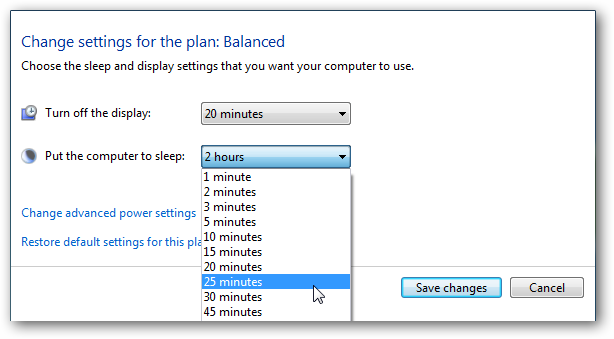
Then you can change the amount of inactive time before the monitor is turned off or the computer goes into Sleep mode.

4power 

If you want to revert back to the default settings, simply click on Restore default settings for this plan.

6power

Custom Power Plan

To create a custom plan, click on Create a power plan from the Power Options section.

7power

In the Create a power plan window a predetermined plan that is closest to what you want, and give the plan a name.

8power

In the next screen select the sleep and display settings you want to use and click the Create button.

9power

After your plan is created you’ll see it under the preferred plans list.

10power

If you click on Change advanced power settings, there are several options you can tweak. These settings should only be used by advanced users, as if you turn off the wrong thing, your computer may not function correctly. Choosing between the predetermined settings should be adequate for most users.

5power

If you are having issues where your laptop is draining too much battery power, or you want to check the overall efficiency of power usage on your computer, check out our article Use PowerCfg in Windows 7 to Evaluate Power Efficiency.

sshot-2010-01-14-[21-59-31]

Conclusion

Windows 7 makes it easy to manage power settings for different computing situations. If you find your computer mysteriously shutting down or going into sleep mode, this should also help you determine why it is happening.

We also have a few other articles related to power management in Windows you might be interested in:

Disable Power Management On Windows 7 or Vista

Create a Shortcut or Hotkey to Switch Power Plans

Change the Windows 7 or Vista Power Buttons to Shutdown/Sleep/Hibernate

Got an opinion to share? Click here to join the discussion

Similar Articles Productive Geek Tips
Latest Software Reviews Tinyhacker Random Tips

Google makes HTTPS default for Gmail

Google has announced on the Official Gmail Blog that they have begun rolling out default https settings to all Gmail accounts. For users that don't want this setting, or if it causes some sort of connectivity issues through someone's firewall, the feature can always be disabled. Here's how it will work… "If you've previously set your own https preference from Gmail Settings, nothing will change for your account. If you trust the security of your network and don't want default https turned on for performance reasons, you can turn it off at any time by choosing 'Don't always use https' from the Settings menu." Google is doing this to protect people's private data from being sniffed by third parties.

Read full story…

Gmail Making Secure Https Connections a Default [Security]

Gmail has long offered a more secure connection option over Https, and two years ago let users set it themselves as a default. Now Google is making https the default setting for all Gmail accounts, unless you flip it back.

Given their recent security episode in China, and the ever-expanding realm of devices and portals users can get at Gmail from, it’s probably a smart step forward to gently goad users into using a more secure connection standard. Google notes that, although using https creates a slight latency, they believe the trade-off is worth it.

If https presents a problem in your particular IT environment, you can still switch it off in your Settings. Here’s Google’s explanation:

If you’ve previously set your own https preference from Gmail Settings, nothing will change for your account. If you trust the security of your network and don’t want default https turned on for performance reasons, you can turn it off at any time by choosing “Don’t always use https” from the Settings menu. Gmail will still always encrypt the login page to protect your password. Google Apps users whose admins have not already defaulted their entire domains to https will have the same option.

Google also notes that Offline Gmail users who weren’t already using https as a default may see some issues, but they suggest a work-around.

Does a default https present problems for your own Gmail account? Happy to see the security struggle moving a step forward? Tell us your take in the comments.

Default https access for Gmail [Official Gmail Blog]