Search results for: “efficiency”

  • Quantum dots could coat the world in nano-sized solar panels

    We’ve long believed in the mystical power of quantum dots, so it makes perfect sense to us that one day they’ll be used to fully harness the Sun God’s rays and thereby save the planet. The nano-particles turn light into electricity, and could potentially be manufactured cheaply and abundantly enough to coat surfaces in current-generating paint. The main obstacle to this has so far been efficiency: the clever little dots just don’t work very hard. However, scientists at the University of Toronto now claim to have discovered a fix. Instead of using a single layer of particles, which can only harvest one meager wavelength from the full gamut of solar light, they added a second coat on top and configured it to be sensitive to an additional part of the spectrum. By adding third and fourth layers, the researchers hope to achieve a commercially viable efficiency of 10-percent within the next five years. We humbly call on Ra to be pleased with their efforts.

    Quantum dots could coat the world in nano-sized solar panels originally appeared on Engadget on Fri, 01 Jul 2011 18:59:00 EDT. Please see our terms for use of feeds.

    Permalink Technology Review  |  sourceNature Photonics  | Email this | Comments

  • EcoBoost: Ford’s Smallest Engine Ever

    A 1.0-liter, three-cylinder engine increases fuel efficiency and lowers exhaust temperatures.

  • Watch A Tugboat Drag An Arctic Iceberg To Parched People Half A World Away [Video]

    Since he was hired in the ’70s by Saudi prince Mohammad al-Faisal, French engineer Georges Mougin has tried to figure out a way to tow freshwater icebergs across the Arctic. Now, with 3-D tech, declassified satellite data, and tugboats, he might have cracked the way to quench the world’s thirst.

    tugboat towing iceberg

    There are 1.1 billion people in the world without clean drinking water. Meanwhile, billions of gallons of freshwater disappears uselessly into the ocean, the result of icebergs that break off from the ice caps of Greenland and melt into the salty mix.

    Do you spot an inefficiency in the system here?

    So did French engineer Georges Mougin. And that’s why he’s invented a system for towing icebergs across the ocean and straight to the world’s thirsty. Using 3-D technology, recently declassified satellite data, and the new science of oceanic forecasting, Mougin has created an elaborate method for hauling ginormous icebergs using a “skirt” and a tugboat.

    It might sound outlandish, but Mougin has been trying to tap the icecaps for decades. In the 1970s, Mougin was enlisted by prince Mohammad al-Faisal, a nephew of the Saudi king, along with other engineers and a polar explorer, in a venture called “Iceberg Transport International.” Faisal planned on wrapping a 100-million-ton iceberg in sailcloth and plastic and tugging it from the North Pole to the Red Sea, though the cost was estimated at an exorbitant $100 million. For a swank conference on “iceberg utilization,” he even managed to ship, via helicopter, plane, and truck, a two-ton “mini-berg” from Alaska to Iowa, where the giant block of ice was chipped apart to chill delegates’ drinks. According to a Time report from October of 1977, Faisal predicted that he’d have an iceberg in Arabia “within three years.”

    That didn’t happen. The Iowa iceberg conference erupted into discord over price and feasibility.

    Thirty-five years later, though, Mougin thinks he can now succeed where Prince Faisal failed. Mougin partnered with a French design firm, Dassault Systèmes, which specializes in running elaborate 3-D simulations. Dassault had garnered some press after helping an architect explore a theory about the construction of pyramids. Mougin then got in touch with Cédric Simard, a project director at Dassault’s Systèmes, thinking, says Simard, “Well, if they can help that architect with the pyramids, surely they can help me with my iceberg project.”

    And indeed they could. The team spent months gathering data and building a virtual simulation that they felt truly modeled the real world. There were many parameters: the boat’s fuel supply and the iceberg’s melt rate, on the one hand, and then the countless variables of the fickle ocean itself–sea currents, swells, winds, and so on.

    What does towing an iceberg actually entail? Dassault gave us an exclusive look at some 3-D animated renderings. Here, then, is an illustrated guide on how to tow an iceberg.

    Step one: You can’t just grab an iceberg any time of the year. “There is a season for harvesting icebergs, a bit like tomatoes,” says Simard with a laugh. You’ll want to consult a glaciologist.

    Also, you’ll want an iceberg of the optimum size–not too big, but not too small–and shape. “When you think of icebergs, if you just ask people in the street, they think of icebergs with the shape of mountains.” But a craggy, irregular iceberg is the last kind you want, if you’re going to lug the thing across an ocean. You want a regular, table-shaped or “tabular” iceberg. That shape “truly facilitates towing,” says Simard, “and is known by glaciologists as the family of icebergs which presents the minimum risk of fracture.”

    Once you’ve found the proper Titanic-buster, have your tugboat (yes, a tugboat–more on that later) deploy a floating geotextile belt–made rigid by a series of poles–around the target, effectively lassoing the iceberg.

    [video_twistage 1]

    The iceberg in the video above might not seem all that formidable. But recall the old saying
    about icebergs and their tips.

    Which brings us to step two: Deploy a geotextile “skirt” to snag
    the bulk of the beast and to keep as much as possible from melting away. The skirt, which deploys down to 20 feet below the surface of the ice, creates a cushion of cold water around the iceberg, which helps slow melting. And below the surface, icebergs are smoothed by ocean currents, making it unlikely the skirt will tear as it protects its cargo.

    [video_twistage 2]

    And now the third and final step (theoretically): Tow that iceberg across the ocean before it melts away.

    [video_twistage 3]

    A tugboat actually can’t lug an iceberg all by itself; it’s a question of harnessing the sea’s natural forces. This is where satellite data and oceanic forecasting comes in. “Though it doesn’t look like this when on a boat, from a satellite’s perspective, [the ocean] looks like a big map of bumps and holes,” explains Simard. Navigating those pockets, like a mogul ski slope, would be the key–if the towing were possible at all.

    And was it possible? Dassault Systèmes gathered all the data, built the 3-D world, and invited Mougin over as they pressed play on their simulation. On the first try, the results were disappointing. The iceberg got caught in a giant whirling eddy for weeks (of simulation time), melting away.

    But Mougin was stoic: “When you’re an engineer, you have to measure your emotions,” says Simard. “When something fails, you always know there is a reason.”

    The team had chosen a simulated launch date that wasn’t conducive to iceberg steering. If they adjusted the date by a few weeks, into a different part of the season, would the iceberg be able to escape that eddy? They altered that parameter, pressed play–and “it just worked,” says Simard.

    The team even discovered that just a single tugboat could theoretically haul an iceberg. They say it’s like a nutshell towing a mountain–and yet it’s possible. For more details, Simard has been blogging of late on the wild scheme, or track down the documentary about Mougin’s Fitzcarraldian dream, which is so far only for French TV.

    [youtube opChLhLMFmU]

    Emboldened by the successful Dassault Systèmes simulation, Mougin is forging ahead with a plan to implement his dream in the real world–he announced a new company to the French press recently. The cost of iceberg transport have not been made public yet, but pilot programs–initially just try to tow a mini-iceberg a short distance, says Simard–are underway. And there is talk, at least, of a real-world trial in 2012 or 2013.

    To the global thirsty, then, take heart: a mountain of water is looming on the horizon.

    [Video and image courtesy of Dassault Systemes]

    Follow Fast Company on Twitter. Email David Zax, the author of this post, or follow him on Twitter.

  • Official: Samsung reveals Chrome OS laptop — the Series 5

    Rumors told us what, when and even how much to expect, but Google just made it official on stage — Chrome OS netbooks are finally here, and Samsung is leading the way with a ultra-slim 0.79-inch thin machine. This is the Samsung Series 5 ChromeBook, which plays to Google’s new standard “Chromebook” spec –in short means they’ll each come with a dual-core Intel Atom processor and an “all-day” battery, which Google says will provide 8.5 hours of continuous usage here. Samsung’s particular clamshell will have a 12.1-inch, 1280 x 800, 300 nit screen, weigh 3.26 pounds and come with dual-band 802.11 WiFi, optional global 3G, two USB 2.0 ports, an HD webcam and a clickable trackpad that Google tells us has thankfully been revamped since the CR-48. You’ll be able to order one from Amazon or Best Buy beginning June 15th. It’ll cost $429 for the WiFi version and $499 for worldwide 3G — which includes 100MB of free Verizon data per month, just like the CR-48. PR after the break.

    Update: Amazon’s Series 5 listing details some additional specs — we’re looking at a dual-core 1.66GHz Intel Atom N570 chip, a 1 megapixel webcam, and a 16GB mSATA solid state drive here, as well as an SDXC card reader, and VGA-out via an “optional” dongle. The press release also mentions a Li-ion battery good for 1,000 recharge cycles, though it doesn’t mention what efficiency will be like after that.

    Continue reading Official: Samsung reveals Chrome OS laptop — the Series 5

    Official: Samsung reveals Chrome OS laptop — the Series 5 originally appeared on Engadget on Wed, 11 May 2011 13:24:00 EDT. Please see our terms for use of feeds.

    Permalink   |  sourceSamsung ChromeBook (Google)  | Email this | Comments

  • Boeing’s biggest jet takes flight, promises lowest ‘seat mile’ cost of any commercial airliner

    Boeing took a huge — both literally and figuratively — step in the development of the largest commercial jet in its history when the 747-8 took to the skies for the first time. Granted, the airframe’s cargo version has already logged over 1,600 hours up in the air, but putting the 250-foot passenger plane with a 224-foot wingspan — 19 feet longer and 13 feet wider than the gargantuan 747-400 — through its first few paces without incident is no small feat. The 747-8 borrows some of the 787 Dreamliner’s weight-trimming tech for better fuel efficiency and lower operational costs than older 747s and jumbo jet competition from Airbus. We just hope it didn’t inherit the 787’s penchant for delays as well. If all goes according to plan, the new jetliner should complete the 600 test flight hours needed for FAA certification in time to deliver the first 747-8s to customers by the end of the year. We doubt airlines will use the plane’s extra space to give us shlubs riding coach any more legroom, but at least its improved all-around efficiency should make flying a little cheaper. PR’s after the break.

    Continue reading Boeing’s biggest jet takes flight, promises lowest ‘seat mile’ cost of any commercial airliner

    Boeing’s biggest jet takes flight, promises lowest ‘seat mile’ cost of any commercial airliner originally appeared on Engadget on Tue, 22 Mar 2011 19:03:00 EDT. Please see our terms for use of feeds.

    Permalink Wired  |   | Email this | Comments

  • Adobe says Flash 10.2 coming to handsets soon, offers roundabout confirmation of Honeycomb for smartphones

    Google’s been notoriously tight-lipped about when Honeycomb will come to cellular handsets, but we may have gotten our answer at a recent Adobe event, as the company’s Anup Murarka tells us Flash 10.2 will be coming to both tablets and smartphones “in the next few weeks.” Come again? You see, Adobe Flash 10.2 uses fewer CPU cycles to play back web video, likely providing better battery life in Android devices (and BlackBerry tablets), but Adobe told us it can’t support the function in earlier versions of the Android OS — Google had to specifically add new capabilities in Honeycomb to let Flash 10.2 take full advantage of hardware. In short, if Flash 10.2 requires Android 3.0 and Flash 10.2 is headed to phones soon, the transitive property of equality suggests that Android 3.0 will soon appear on smartphones as well. Our algebra teacher would be so proud.

    In related news, both Flash and Adobe AIR seem to be doing quite well in the mobile arena thus far, as Adobe reports that that AIR is presently in over 84 million smartphones and tablets — with over 200 million such devices ready for the cross-platform apps by the end of the year — and Flash has shipped on 20 million devices across 35 different models (twelve percent of all smartphones, says Adobe) with 50 new Flash-ready tablets scheduled to appear in 2011. PR after the break.

    Continue reading Adobe says Flash 10.2 coming to handsets soon, offers roundabout confirmation of Honeycomb for smartphones

    Adobe says Flash 10.2 coming to handsets soon, offers roundabout confirmation of Honeycomb for smartphones originally appeared on Engadget on Mon, 14 Feb 2011 01:29:00 EDT. Please see our terms for use of feeds.

    Permalink   |   | Email this | Comments

  • Flickr Hack Makes 3D Model of Any City in a Day

    unc.pngScholars at the University of North Carolina at Chapel Hill have developed a method for creating 3D models of pretty much anything in pretty much no time.

    Using a sexy algorithm and the millions of photographs available from Flickr, the team can create a sophisticated three-dimensional model on a single personal computer in under a day.

    Sponsor

    The process was created by a team made of specialists from UNC and colleagues at Swiss university, ETH-Zurich, led by Jan-Michael Frahm. Their proof-of-concept was Rome, which was constructed out of 3 million images in under a day using over-the-counter graphics software, according to UNC.

    “Our technique would be the equivalent of processing a stack of photos as high as the 828-meter Dubai Towers, using a single PC, versus the next best technique, which is the equivalent of processing a stack of photos 42 meters tall – as high as the ceiling of Notre Dame – using 62 PCs. This efficiency is essential if one is to fully utilize the billions of user-provided images continuously being uploaded to the Internet.”

    They follow-up Rome with the same process on Berlin.

    The implications are interesting. Such a process could be, Frahm said, folded into consumer tools like Google Earth and Bing Maps. It could also help both disaster responders, who need a full picture of where they’re headed, and tourists, who want to find out all they can about a location with a click.

    Other sources: Futurity

    Discuss

  • AMD’s Bobcat APU benchmarked: the age of the Atom is at an end

    So small, and yet potentially so disruptive. AMD’s 1.6GHz Zacate chip, bearing a pair of Bobcat modules, has been taken off the leash today, resulting in a torrent of benchmarks pouring down onto the internet. While perusing the sources below, you might think to yourself that it’s not exactly a world beater, sitting somewhere in the middle of the pack on most tests, but compare it to Intel’s dual-core Atom D510 — its most immediate competition in the target sub-$500 laptop price range — and you’ll find a thoroughgoing whooping in progress. The highlight of these new Fusion APUs is that they integrate graphics processing within the CPU chip, and Zacate didn’t disappoint on that front either, with marked improvements over anything else available in its class. The resulting chips might still not have quite enough grunt to earn a place in your daily workhorse mobile computer, but their power efficiency and netbook-level pricing goals sure do look delightful. Or dangerous, if you’re Intel.

    Read – AnandTech
    Read – Tech Report
    Read – PC Perspective
    Read – Hot Hardware
    Read – Legit Reviews

    AMD’s Bobcat APU benchmarked: the age of the Atom is at an end originally appeared on Engadget on Tue, 16 Nov 2010 03:34:00 EDT. Please see our terms for use of feeds.

    Permalink   |   | Email this | Comments

  • Facebook Users Can Now Upload High-Res Photos, Bulk Tag Friends

    Facebook High Res Facebook users everywhere will soon be able to upload photos in higher resolution, tag their friends with greater efficiency and browse through their friends’ albums with more grace, thanks to a new set of features that will begin rolling out this month.

    The social networking site’s new photo features will allow users to upload photos in a 2048-pixel resolution, instead of the traditional 720-pixel resolution. “It’s enough pixels to print out a 5×7 print at 300 DPI,” says Facebook Photos product manager Sam Odio. In addition, Facebook members will no longer have to load a separate Web page to view each photo in a friend’s album, thanks to a streamlined viewing function that automatically displays images, comments and tags directly on top of an already opened page. “It’s essentially going to happen very quickly, right when you click on the thumbnail,” Odio says. “If you click on a photo and an album from a news feed, you can still page through the entire album.”

    Continue reading Facebook Users Can Now Upload High-Res Photos, Bulk Tag Friends

    Facebook Users Can Now Upload High-Res Photos, Bulk Tag Friends originally appeared on Switched on Fri, 01 Oct 2010 09:00:00 EST. Please see our terms for use of feeds.

    Permalink | Email this | Comments

  • Picasa 3.8: Face movies, Picnik integration, batch upload, and more

    Posted by Jonathan Sposato, Product Management

    Today, we released the latest version of Picasa with lots of cool new features but there’s one item that we’re particularly excited about.

    Face movies create a movie based around one person both figuratively and literally. Instead of the usual transition from one photo to the next, the images align themselves to the face in the photo. This creates an extremely smooth viewing experience which allows the person in the photos to remain the focus rather than the transition effects themselves.

    Words cannot adequately describe this feature, it’s better to see it for yourself:

    Some more items in this release:

    Picnik integration
    A few weeks ago we announced the integration of Picnik, the powerful online photo editor, into Picasa Web Albums. We’re now excited to bring this same functionality to Picasa. You can now use Picnik’s rich editing tools and effects from right inside of Picasa and see where your creativity takes you.

    Batch upload from Picasa to Picasa Web Albums
    With this new version of Picasa we’re also fulfilling a popular request: batch upload from Picasa right to your Picasa Web Albums account. In addition to uploading multiple photos, you can now upload entire albums, all at the same time, plus remove albums from your Picasa Web account, change the upload size, visibility and sync state of photos that are already online.

    Metadata updates
    For those of us who enjoy the technical side of photography, we have some nice metadata (information stored inside of your image file) updates too, including support of Color Management. Picasa will now read the metadata from your photo and present the photo in the correct color space, thus improving the way your photo displays on your monitor or TV screen.

    Picasa also has expanded support of XMP, which will be presented in an easy and accessible way alongside your image in the Properties panel. You can find people, places and tags in this space as well.

    We’re also adding a few other under-the-hood updates such as improved support of external drives, increased efficiency of CPU usage, and improved settings when sharing with your Gmail contact groups.

    This latest release is in English only for now, but we plan to roll out additional languages soon. Download Picasa today and, as always, feedback and questions are welcome in our forums.

  • Group Video Chat With Family and Friends For Free

    Whether it’s a graduation or new birth, there are many special occasions in life that we’d like to be present for but can’t due to distance.  When a call doesn’t cut it, here’s how to video chat with up to 20 friends or family with Tokbox.

    Video Chat can be complicated to setup, especially if you want to video chat with multiple people.  There are numerous web apps that offer free, limited plans for group video chat, but they are almost all aimed at the enterprise market and are fairly complicated to use.  Whether you’re a geek or have never setup a webcam, complicated tools never make the job easier.  We were excited to find that Tokbox is very simple to use for group video chats, and worked great.  Keep reading to see how it works, and then go try it out with your family and friends!

    Getting Started

    First, you’ll need to get a Tokbox account.  Head over to the Tokbox website (link below), and click the Sign Up button under Video Chat.

    sshot-2010-07-29-[13-13-32]

    Enter your name, age, email and password.  Agree to the terms of use, and then click Submit.

    sshot-2010-07-29-[13-13-52]

    That’s all, folks; you’re all ready to make video calls.  Click the call now button at the top of the page to go ahead and invite friends to chat with you.

    sshot-2010-07-29-[13-15-25]

    You may have to wait a few moments for the video interface to load.  Note that the entire TokBox interface is powered by Flash, so you’ll have to have flash installed on your computer to use it.

    sshot-2010-07-29-[13-15-54]

    Once it’s loaded, Flash will ask to access your camera and microphone.  Click Allow, and if you’d rather not have to answer this again in the future, check the Remember box as well.  Now click Close to get on with your video chat.

    sshot-2010-07-29-[13-16-09]

    Enter your friends’ email addresses and add an invitation message, then press Invite Contacts.

    sshot-2010-07-29-[13-18-08]

    Alternately, click one of the social media icons on the right to invite your friends from Facebook, Twitter, or MySpace to your video chat.

    image

    You’ll now see your video on the left side, and blank area on the right while you’re waiting on your friend to arrive.

    image

    You may see some tips for things to do to help your experience, but generally everything just worked in our test without tweaking.

    image

    Joining a Video Chat

    If you’ve been invited to a TokBox chat, you’ll receive a link in an email or social network message.  Click the link to join your friend’s chat.

    sshot-2010-07-29-[21-20-06]

    Click Allow to let TokBox access your camera and microphone so your friend can see and hear you in the chat.

    sshot-2010-07-29-[21-18-25]

    Finally, enter your name and click Enter video chat now.

    sshot-2010-07-29-[21-18-45]

    After a few moments, you and your friend will be chatting together with live audio and video.  You can see information about your internet connection by hovering over the video.  Up to 20 people can chat at once, so if there are more participants the video windows will resize to fit all of the videos.

    sshot-2010-07-29-[21-22-06]

    Alternately, if your computer doesn’t have a webcam, your video box will show a mic icon and say Voice only.  You can still see your friends’ videos, but they won’t be able to see you.

    image

    You can also text chat with your family and friends from the text box underneath the video chat. This will help you troubleshoot issues with audio or video. 

    image

    Extra Features

    Tokbox also makes it easy for you to share videos and pictures with your friends.  Click the TV icon on the top of the chat window to add a video from YouTube or a picture from Flickr or Picasa to show everyone in your chat.

    image

    Once you’ve exited a video call, you can see your recent calls on the dashboard, and can even easily call someone back.

    image

    You’ll see a countdown timer before the call starts, so if you accidently clicked call you can always cancel before your video call starts.

    image

    You can add your contacts from social networks to quickly invite them to a video call from the dashboard as well.

    image

    Or, if one of your friends calls you while you’re logged into TokBox, you’ll see a nice preview asking if you want to accept or ignore the call.  Click Accept to start video chatting with the caller.

    image

    Or, you can change Tokbox settings if you like.  Click the Account link on the top right, and then select Edit my profile.

    image

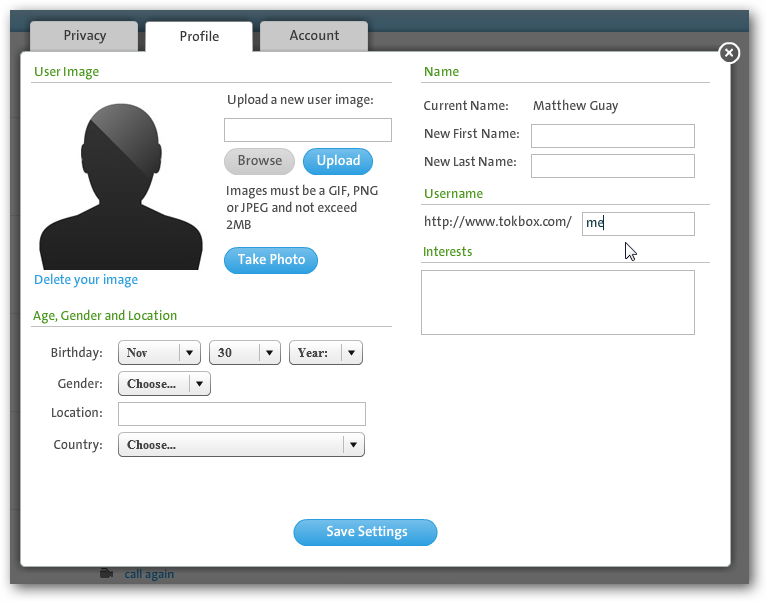
    Here you can add personal info, as well as change your TokBox username.  You can share your username with friends and family so they can quickly call you anytime by visiting tokbox.com/your_name.

    image

    Conclusion

    While Skype is a great service for making voice and video calls to individual people, it’s currently difficult or impossible to video chat with several people at once.  TokBox makes it incredibly simply to video chat with your family and friends, and since up to 20 people can chat together they all can join in at the same time.  Whether you want to discus reunion plans or simply have an online reunion, you can quickly get your family in the same “room” with TokBox even if they’re not tech savvy. This might come in handy if you have a loved one stationed overseas who aren’t tech savvy.  We’ve tried many different services, but few were as easy to use as Tokbox.  Give it a try, and let us know how it worked for you!

    Link

    Signup for Tokbox

    Got an opinion to share? Click here to join the discussion

    Similar Articles Productive Geek Tips

  • Help Prevent Stutter in Video Streams in VLC & Windows Media Player

    When watching a video that’s streaming across your home network, it’s annoying to get the “stutter effect”. With a simple tweak in VLC and Windows Media Player we can help prevent this annoyance.

    There could be other factors that cause network video streams to stutter, such as the type of hardware you’re using or streaming wirelessly. But before you go out and spend a bunch of money for a full Gigabit network, a simple setting change to the read buffer cache in VLC or WMP can definitely help.

    Increase Caching in VLC

    To change the buffer cache size in VLC click on Media \ Open Network Stream.

    sshot-2010-07-21-[23-51-33]

    At the bottom right of the screen, check Show extended options.

    sshot-2010-07-21-[23-53-12]

    Now increase the number in the Caching field. By default ours was set to 200ms and we bumped it up to 500ms or 0.5 seconds. When done click the Play button.

    sshot-2010-07-21-[23-54-58]

    Now you should be able to enjoy your video stutter free.

    sshot-2010-07-22-[00-04-52]

    Windows Media Player

    To increase the read buffer in Windows 7 Media Player open it up and click “Alt+T” to bring up the menu and go to Tools and click on Options.

    sshot-2010-07-22-[00-09-58]

    Now click on the Performance tab and under Network buffering change the buffering from using the default (which is 5 seconds) to a larger number. Notice in WMP it’s not in milliseconds like VLC so just increase it to whatever works best. When you’re done click OK.

    sshot-2010-07-22-[00-12-50]

    Now you should be able to watch your favorite streaming video content on Media Player without any stuttering in the feed.

    sshot-2010-07-22-[00-14-18]

    Windows Media Player 11

    You can also do this in WMP 11 in XP and Vista following the same process…

    sshot-2010-07-22-[00-46-38]

    sshot-2010-07-22-[00-48-25]

    Conclusion

    If you’re annoyed by stuttering when streaming video over your network, changing these settings can help. You’ll probably have to experiment a bit with the caching until you get it where you want it. You should be able to do this in other video players as well, just read the products documentation. Depending on how much you increase it by, it may take videos longer to startup, but you should be able to enjoy stutter free video!

    Got an opinion to share? Click here to join the discussion

    Similar Articles Productive Geek Tips

  • Run Android on Your Netbook or Desktop

    Would you like to try out Google’s Android OS on your netbook or desktop?  Here’s how you can run Android from a flash drive and see how fast Android can run on real hardware!

    Install Android On Your Flash Drive or Memory Card

    First, make sure you have a flash drive or memory card inserted into your computer with around 256MB or more storage space.  Remove any files you may need off of the drive, so you can use it to run Android on your computer.

    Now you’re ready to download and setup Android on your drive.  Head over to the Android x86 download page (link below), scroll down to the StableRelease section, and click View under android-x86-1.6-r2.iso.  This will start the iso file downloading to your computer.

    image

    In the mean time, head over to the UNetbootin site (link below), and download it as well.

    image

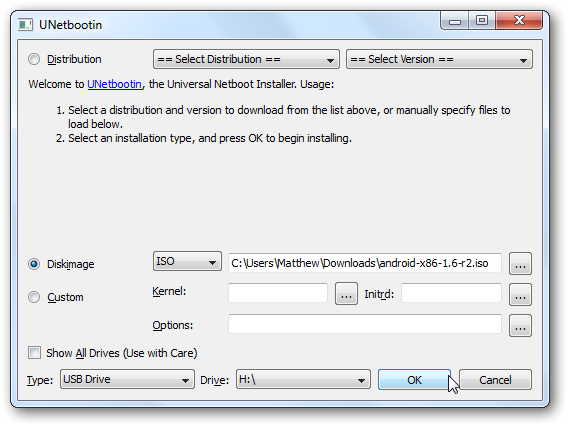
    Once your downloads are complete, run UNetbootin.  Click the bullet beside Diskimage, then click the “… “ button and select the Android ISO file you just downloaded.  Finally, select the correct flash drive or memory card in the menu on the bottom, and click Ok.

    sshot-2010-07-21-[22-57-53]

    UNetbootin will now copy the files to your flash drive.  This may take a few moments, depending on your flash drive’s speed.

    sshot-2010-07-21-[22-57-58]

    Once it’s finished, it will ask if you wish to reboot.  If you want to go ahead and run Android, you can click Reboot; otherwise, just exit and run Android from your flash drive when you want.

    sshot-2010-07-21-[22-58-11]

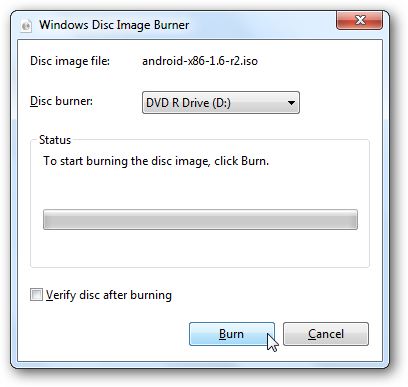
    If you want to try Android on a computer that has a CD/DVD drive, you could just burn the ISO to a disk and boot from it.  Netbooks don’t have CD drives, and even on a desktop, it can be nice to not waste a CD just for this.  If you want to burn it to a disk, you can do it easily from Windows 7 or with a free program such as ImgBurn.

    image

    Using Android-x86 On Your Computer

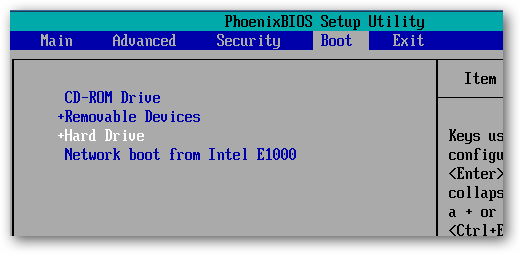
    Now you’re ready to run Android on your netbook, laptop, or even a full desktop computer.  Simply reboot your computer with the USB drive, and select to boot from it.  Not all computers will automatically boot from a USB device, so you may have to press F2, F10, or another key, depending on your computer, and change the Boot options in the bios.

    image

    Now, when you boot from the USB drive, select Live CD – Run Android-x86 without installation.

    sshot-2010-07-21-[21-34-59]

    You’ll see a text prompt for a few moments as Android begins to load.

    sshot-2010-07-21-[21-35-31]

    Then you’ll see the Android boot screen, though we only saw it for a moment, as our computer booted really fast into Android.

    image

    After a couple seconds, you’ll see the Android desktop … on your netbook or computer!  You can quickly access one of the apps on the home screen, or open the menu to see more options.

    image

    Click and hold to open a context menu, such as to change the background or add a desktop widget.

    sshot-2010-07-21-[21-52-49]

    Or, press your mouse’s right button to open a menu, such as to open a new tab in the browser.

    image

    It works very good as a quick way to get online; the Android browser is actually quite capable for normal browsing, and worked very well in our tests.  With a 10 second or less boot time, you may enjoy using this as an alternate to Puppy Linux or other light distros for a quick way to get online securely.

    sshot-2010-07-21-[21-52-13]

    You can even install new applications with the included AndAppStore, though these will only be installed while this Android session is running.  If you reboot your computer, you’ll only see the default applications and settings again.

    sshot-2010-07-21-[22-37-48]

    Android x86 supports all of the hardware, including cameras and Wi-Fi, on several Netbooks and laptops; check the link below to see if yours is supported.  In our test, our camera wasn’t supported, and we additionally had to connect to the internet via Ethernet since it didn’t detect our Wi-Fi card.

    sshot-2010-07-21-[22-38-13]

    For the most part, Android was very responsive, but anything that would fade out the desktop such as opening a dialog box or a menu would run very slowly and even make the mouse feel jerky.  Additionally, we couldn’t get it to boot on our desktop with an AMD processor.  You could install Android to your hard drive, but we wouldn’t recommend it considering the limitations and issues it has.  But, it is very fun to play with from a flash drive or memory card, and you may even feel adventurous enough to try installing it.  Be warned, though; this isn’t for the weak of heart!

    Conclusion

    If you’re curious about how Android works and would like to try it out on a real machine, this is a great way to see how fast a mobile OS can be on a netbook or desktop.  We wish it was more stable and could actually store programs and settings on the flash drive, but it did work as a nice substitute for Puppy Linux or other light, Live CD distros.  It runs much faster on a real computer than in the emulator.  Since you’re running it from a flash drive, you don’t have to worry about messing anything up, so go ahead and try it for research or fun.

    Or, if you’d rather just try out Android from inside Windows, check out our articles on How to Test Drive Android in the Android Emulator and How to Enable the Android Market in the Emulator to try out the best Android has to offer.

    Links

    Download Android x86

    Download UNetbootin

    See if Your Netbook or Laptop is Fully Supported

    Got an opinion to share? Click here to join the discussion

    Similar Articles Productive Geek Tips

  • Teenagers cannot concentrate because their brains are undeveloped

    (PhysOrg.com) — New research from the UK has found that teenagers and young adults find it hard to concentrate because their brains are more similar to those of much younger children than those of mature adults, with more grey matter but lower efficiency. The findings suggest the brain is not fully …

  • Learning Windows 7: Manage Power Settings

    In XP you probably already know how to manage the power settings for your system on a laptop or desktop. Today we take you through how to manage power settings and create custom plans in Windows 7.

    There are new power management options that you can set up in Windows 7 compared to XP. You might want to change plans to save battery power on your laptop, or reduce energy consumption on a desktop at home or the office. Here we will look at how to manage and tweak the power plans, and how to create custom plans as well.

    Power Settings

    To access power plan options, type power settings into the search bar in the Start Menu and hit Enter.

    1power

    The Power Options screen opens and from here you can select from three predefined plans–Balanced, Power saver, or High performance.

    2power

    Click on Choose what the power button does and you can tweak several options such as Requiring a password on wakeup and what the power button on the computer does. If you set When I press the power button to Do nothing, you won’t have a problem with the PC shutting down when you accidently hit the power button.

    11power

    To change any one of the predefined power plans click on Change plan settings.

    3power

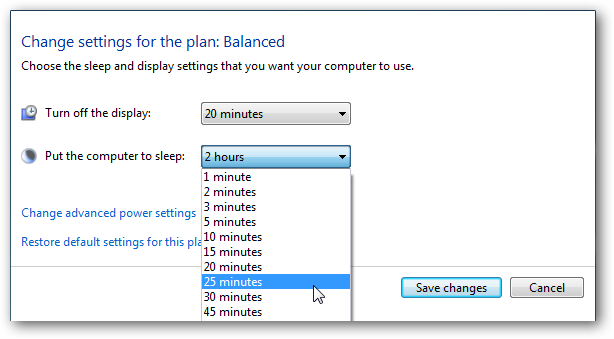
    Then you can change the amount of inactive time before the monitor is turned off or the computer goes into Sleep mode.

    4power 

    If you want to revert back to the default settings, simply click on Restore default settings for this plan.

    6power

    Custom Power Plan

    To create a custom plan, click on Create a power plan from the Power Options section.

    7power

    In the Create a power plan window a predetermined plan that is closest to what you want, and give the plan a name.

    8power

    In the next screen select the sleep and display settings you want to use and click the Create button.

    9power

    After your plan is created you’ll see it under the preferred plans list.

    10power

    If you click on Change advanced power settings, there are several options you can tweak. These settings should only be used by advanced users, as if you turn off the wrong thing, your computer may not function correctly. Choosing between the predetermined settings should be adequate for most users.

    5power

    If you are having issues where your laptop is draining too much battery power, or you want to check the overall efficiency of power usage on your computer, check out our article Use PowerCfg in Windows 7 to Evaluate Power Efficiency.

    sshot-2010-01-14-[21-59-31]

    Conclusion

    Windows 7 makes it easy to manage power settings for different computing situations. If you find your computer mysteriously shutting down or going into sleep mode, this should also help you determine why it is happening.

    We also have a few other articles related to power management in Windows you might be interested in:

    Disable Power Management On Windows 7 or Vista

    Create a Shortcut or Hotkey to Switch Power Plans

    Change the Windows 7 or Vista Power Buttons to Shutdown/Sleep/Hibernate

    Got an opinion to share? Click here to join the discussion

    Similar Articles Productive Geek Tips
    Latest Software Reviews Tinyhacker Random Tips

  • BMW's Diesel Plug-In Hybrid: 63 mpg, Faster Than an M3

    BMW_Vision_Hero_7421.jpg
    BMW’s EfficientDynamics Vision concept car combines the best of all worlds with incredible fuel efficiency, breaktaking performance, and sensational looks. It’s powered by a three-cylinder turbo-diesel engine, lithium polymer batteries, and electric motors front and rear. The BMW Vision gets a U.S. unveiling next week at the Los Angeles Auto Show, Dec. 4-13. The only bad news: The BMW Vision is more vision than production-ready concept car. What you’d most likely see on sale would be the key components such as the drivetrain and battery technology transplanted to a more mainstream body.


    On a stopover from Europe en route to L.A., BMW held a series of press briefings at its Chestnut Ridge, N.J., U.S. headquarters. According to BMW, the goal was to create a car that would be as quick as BMW’s V8 M3, yet tread lightly in terms of environmental impact. Here’s how the BMW Vision has the potential to win the hearts and minds of hot-rodders, environmentalists, and techies alike:

    Total output from the engine and electric motors is 356hp, and peak torque is 590 foot-pounds (a lot). Acceleration to 100 kph (62 mph) takes just 4.8 seconds and speed tops out at 155 mph. Average fuel consumption is 62.6 mpg or 3.76 liters/100 km in European figures. The fuel economy translates to CO2 emissions of 99 grams per kilometer; getting below 100 is the holy grail by EU standards.

    The Vision has a range of 431 miles, BMW says: 31 miles in all-electric mode, about the same as the Chevrolet Volt, plus 400 miles from the 6.6 gallon fuel tank. BMW hasn’t yet tried to play the U.S.-automaker mpg numbers game, saying that since most trips are less than 30 miles, and since big powerplant generation is more efficient than using a combustion engine, the effective mileage is up around 200 mpg. What is clear is that electric motors are extremely efficient, as are big power plants, so the effective cost of energy is less than half that of diesel or gasoline fuel.

    The three-cylinder, 1.5-liter engine alone produces 163 hp. BMW says the output of 109 hp per liter is the most power produced by a diesel engine. It’s small enough to fit ahead of the rear axle for better weigh distribution. Power travels to the rear wheels via a six-speed double-clutch transmission.

    One electric motor, in back, sits between the diesel engine and transmission and produces 33 hp (51 hp peak). It can run on its own, without the combustion engine, making the Vision what’s considered an active hybrid, as opposed to a mild hybrid where the combustion engine always powers the car. The second motor powers the front axle; it produces 80 hp (continuous), 112 hp (30-second bursts), or 139 hp (10-second bursts). The two motors also act as brakes and regenerate power into the lithium polymer battery pack that runs in a tunnel along the floor of the car. Fuel for the diesel engine is in the rear of the tunnel (separate compartment; it doesn’t just slosh around the batteries).

    The battery pack has enough juice to bring anyone back from cardiac arrest (or cause it): 98 lithium-polymer cells deliver 30 amp/hours at 3.7 volts, or 111 watt-hours. So each cell is about equal to two laptop batteries. For periods of up to 30 seconds, each cell develops 1,200 amps. Plug the Vision into a standard (in Europe) 220-volt, 16-amp circuit, and the car fully recharges in 2.5 hours. Uses 380 volts and 32 amps and you’re back on the road in 44 minutes. Conversely, you’d be looking at overnight plugged into 120 volt U.S. power.

    Since it’s a concept car, cost and practicality aren’t the main concerns. BMW has provided some stunning visual touches:

    Windshield and Roof From One Piece of Glass
    BMW_Vision_Glass_P90047123_highRes.jpg

    The windshield and roof are a single piece of glass (or polycarbonate). The body is carbon fiber and the chassis is aluminum, all of which yields a weight under 3,000 pounds, a third of a ton less than the BMW M3.

    Glass Cockpit
    BMW_Vision_HUD_P90047173.jpg

    The instrument panel consists of both a small display in front of the steering and a big head-up display.

    iDrive in the Center Console
    BMW_Vision_iDrive_P90047161.jpg

    Since it's a BMW, there's iDrive. Of course.  

    Alloy Wheels Help Channel Airflow
    BMW_Vision_Wheel_MG_7422.jpg

    The alloy wheels look like a child’s pinwheel, less so to extract heat from the brakes (regeneration means the brakes don’t work that hard on this car) but to help move air in a continuous boundary layer over the bodywork. There’s also a small slit in the front fender that channels air around the wheels. BMW says the tires are a new generation that provides low rolling resistance without giving up handling.

    Airflow Over the Body
    BMW_Vision_Airflow_P90050695.jpg

    The trademark BMW kidney grille opens and closes to channel airflow at different speeds for reduced wind resistance.

    Thin Seats Save Space
    BMW_Vision_Seats_P90047164.jpg

    The seats are meant to be supportive but almost wafer thin. Don’t carry whiny 5-year-olds in back if they’re prone to show displeasure by kicking the front seatbacks. Not that you’d want kids in a car with white and light-color upholstery anyhow.