Fullscreen and more!

As Google Reader is all about reading, we thought we should give our users a chance to maximize their screen space whenever possible… thus fullscreen mode was born. You can toggle the fullscreen mode through the ‘f’ key. Additionally, you can use ‘shift + u’ to show and hide the navigation panel so you can easily change what you’re reading without leaving fullscreen mode.

Eagle-eyed viewers might have also noticed we’ve added a new category to the trends page: clicked trends – now you can see which sources you click on the most.
And finally, something many of you have asked for before…we now show you your lifetime read item count. That’s right. Every. Single.* Item.**

*Only things you’ve scrolled by, or clicked on – doesn’t count mark all as read.
**Okay, that’s not quite accurate – once you hit around 300K (which we know some of you are already over) we stop counting for performance reasons. Consider that “beating the game”.

H.264 video codec standard to stay royalty-free

MPEG LA announced earlier today that they would make H.264 permanently royalty-free, to keep business and consumers’ minds at ease.

The codec standard was developed to reduce bit rates over the previous codec standards, and is widely used in web applications, software and even hardware. H.264 is found in a variety…

Rumor: Facebook to introduce voice/video chat

Neowin recently reported that Facebook is gearing up to drop support for Internet Explorer 6. While it was originally thought that this was to help remove IE6 from the Internet ecosystem, it appears that there are other motives as well.

Neowin has received information, with credit going to newsgeek.co.il for the…

Google Realtime Search: a new home with new tools

When we first introduced our real-time search features last December, we focused on bringing relevance to the freshest information on the web. Our goal was to provide real-time content from a comprehensive set of sources, integrated right into your usual search results. Today we’re making our most significant enhancements to date, giving real-time information its own home and more powerful tools to help you find what you need. Now you can access Google Realtime Search at its own address, www.google.com/realtime (the page is rolling out now and should be available soon. Use this link if you want to try out the new features right away).

On the new homepage you’ll find some great tools to help you refine and understand your results. First, you can use geographic refinements to find updates and news near you, or in a region you specify. So if you’re traveling to Los Angeles this summer, you can check out tweets from Angelenos to get ideas for activities happening right where you are.

In addition, we’ve added a conversations view, making it easy to follow a discussion on the real-time web. Often a single tweet sparks a larger conversation of re-tweets and other replies, but to put it together you have to click through a bunch of links and figure it out yourself. With the new “full conversation” feature, you can browse the entire conversation in a single glance. We organize the tweets from oldest to newest and indent so you quickly see how the conversation developed.

Finally, we’ve also added updates content to Google Alerts, making it easy to stay informed about a topic of your choosing. Now you can create an alert specifically for “updates” to get an email the moment your topic appears on Twitter or other short-form services. Or, if you want to manage your email volume, you can set alerts to email you once per day or week.

Check out our demo video of the new features and quick tips on how to use them:

You can access Realtime Search by typing www.google.com/realtime directly into your browser, or clicking the “Updates” link in the left-hand panel of your search results. Set up your Google Alerts at www.google.com/alerts. Realtime Search and updates in Google Alerts are available globally in 40 languages, and the geographic refinements and conversations views are available in English, Japanese, Russian and Spanish. The features are rolling out now, but you can use this link to see them right away.

Posted by Dylan Casey, Product Manager

Remote Desktop to Your Windows Computer From Your iPhone, iPad, or iPod Touch

There might be times when you need to access your Windows computer at home or the office, but all you have is your iOS device. Here we take a look at RDP Lite which provides access to your Windows PC.

Here is an excerpt from the Developer’s description:

“It enables you to have full, secure access to your work computer through Wi-Fi or the phones network (EDGE). Using your iPhone, you can connect to your Windows Computer and see the files, programs, and resources exactly as you would if you were sitting at your desk, just on a smaller screen.”

Setup Windows for Remote Desktop Connections

In Windows 7 or Vista make sure you’re allowing Remote Control of the machine…right-click Computer and select Properties.

sshot-2010-08-25-[02-45-14]

Then under the Remote tab select the level of security for Remote connections.

sshot-2010-08-24-[23-51-03]

In XP right-click My Computer and select the Remote tab. Then under Remote Desktop check Allow users to connect remotely to this computer.

sshot-2010-08-22-[02-50-15]

If you don’t allow Remote Desktop you’ll get a connection error when trying to connect. Of course this error could be for other reasons like no Wi-Fi Connectivity or the machine you’re trying to connect to is turned off.

sshot-2010-08-22-[01-29-44]

Install and Setup RDP Lite

Simply download and install RDP Lite from the App Store on your device or from the iTunes App Store.

sshot-2010-08-22-[01-32-32]

After it’s installed, tap Menu then Edit Connections…

sshot-2010-08-22-[00-51-33]

Now enter in the IP address of the machine you want to connect to. Notice it uses port 3389 by default so you might need to set that in Port Forwarding on your router.

sshot-2010-08-22-[00-50-53]

Like with using RDP on a desktop, you can change the display options so it runs faster.

sshot-2010-08-22-[00-51-15]

If you have several machines on your network, then RDP settings will be saved for each of them in the Host List.

sshot-2010-08-25-[00-14-19]

After connecting to one of your machines you’ll just need to log in just like RDP on the desktop. Tap on the keyboard icon to start the login.

sshot-2010-08-25-[00-55-58]

Then type in your password and login.

sshot-2010-08-25-[00-56-21]

Here is a look at it in Landscape View.

sshot-2010-08-25-[00-56-48]

Now you can access anything on your desktop right from your iPhone or iPod Touch! You can move the screen around and make it larger for easy access to what you want on the desktop.

sshot-2010-08-25-[03-14-48]

During the remote session, the machine you’re logged into will show the login screen.

sshot-2010-08-25-[02-54-55]

Here we accessed the Control Panel and tapped on Date and Time.

sshot-2010-08-25-[00-16-34]

Then we were able to adjust the Time and Time Zone on out Windows 7 machine. When you’re done doing what you need to do on the system, tap on the Menu icon at the bottom of the screen.

sshot-2010-08-25-[00-17-00]

Then tap on Disconnect to close the session.

sshot-2010-08-25-[02-02-33]

Or if you log into the machine you’re having a remote session with, you’ll see the following message telling you the session has been closed.

sshot-2010-08-25-[00-57-09]

Here we did a remote session into an XP Pro machine. Click on the third button to zoom in and out of a specific view.

sshot-2010-08-25-[18-45-03]

Connect to Windows Home Server

If you have WHS you’ll be pleased to find that you can remote into it as well.

sshot-2010-08-22-[01-45-34]

Then you can open up the Windows Home Server console and manage the server.

sshot-2010-08-22-[01-30-31]

sshot-2010-08-22-[01-30-52]

There is a handy help section built in so if you’re having problems or need to know how to do a certain task you can pull it up for more information.

sshot-2010-08-22-[00-52-20]

One caveat we ran into is sometimes the RDP Lite controls for Menu and Keyboard would disappear and it there wasn’t an easy way to get them back. We had to disconnect the remote connection and log back in to get them back. They also offer a Pro version which we didn’t try out, but it touts better keyboard controls, better mouse functions, and can handle 20 different Host configurations.

This can come in handy if someone on your network needs help with troubleshooting or if you want an easy way to access different machines on your network. If you need a way to remote into your computers from your iOS device from a Wi-Fi connection, RDP Lite does a pretty good job. We weren’t able to test it out on the iPhone over 3G, but according to the description you can do it. Then you can access your machine at work from where ever you have your iPhone.

If you’ve used the iPhone or iPad version of RDP Lite leave us a comment and let us know.

RDP Lite on iTunes Preview

Got an opinion to share? Click here to join the discussion

Similar Articles Productive Geek Tips

Samsung Galaxy Tab gets video preview in Korea

It sees like we can’t let a day pass without talking about Samsung’s upcoming Froyo tablet. This time there’s a whole video preview, courtesy of some of our Korean brethren. Android 2.2, WCDMA 3G, 802.11n WiFi, a 16:10 screen ratio, a front-facing camera “dedicated to video calling,” SDHC memory expandability, and a DMB tuner for those TV-crazy Koreans are all listed on the spec sheet, but you’ll be wanting to see the Galaxy Tab’s UI in motion. It really looks silky smooth and should give the iPad cause for concern. Speaking of the iPad, there’s a size comparison against Apple’s slate and Samsung’s own Galaxy S handset as well — all yours after the break.

Update: Fast-loading video embedded after the break.

[Thanks, Eric]

Continue reading Samsung Galaxy Tab gets video preview in Korea

Samsung Galaxy Tab gets video preview in Korea originally appeared on Engadget on Thu, 26 Aug 2010 08:44:00 EDT. Please see our terms for use of feeds.

Permalink   |  sourcedt.co.kr  | Email this | Comments

Link Wireless A/V Extender Brings Your Desktop Display to the Couch

450x450_27774_IMN_Link_LQ.jpgThe wireless display revolution carries on with the Link Wireless A/V Extender announced today by Imation. Able to project HD video output from your computer to your high-def television or projector, the Link is fully compatible with both Windows XP or greater, and at least Mac OS 10.4. 

It works via a USB 2.0 transceiver connected to your PC or Mac which sends 720p video (and 1080p stills) to your HDTV via a 10-inch receiver connected through your TV's HDMI or VGA port. Better yet, the drivers are included within the transceiver for Windows users (Mac lovers get an install disc) for true plug-and-play functionality. 
This device comes in the wake of Intel’s WiDi technology that serves essentially the same purpose. However, since WiDi is done using a special Netgear device via a custom Wi-Fi network, the content you push to your HDTV is subject to those nasty DRM rules. This shouldn’t be the case with Imation’s tech since it’s simply pushing the signal via wireless USB. Not to mention WiDi technology has to be built into said computer’s network adapter, which only a few (like Sony’s Vaio S and the Toshiba E205) have since emerged. 
With a "line-of-site" range of 30 feet, you shouldn't have any problem connecting your TV across the room to your desktop with this gadget, according to Imation. The manufacturer claims that the Link Wireless A/V Extender is available now through Amazon for $149.99, but the product has yet to appear on the online store. Stay tuned!

Call phones from Gmail

(Cross-posted from the Gmail Blog)

Gmail voice and video chat makes it easy to stay in touch with friends and family using your computer’s microphone and speakers. But until now, this required both people to be at their computers, signed into Gmail at the same time. Given that most of us don’t spend all day in front of our computers, we thought, “wouldn’t it be nice if you could call people directly on their phones?”

Starting today, you can call any phone right from Gmail.

Calls to the U.S. and Canada will be free for at least the rest of the year and calls to other countries will be billed at our very low rates. We worked hard to make these rates really cheap (see comparison table) with calls to the U.K., France, Germany, China, Japan—and many more countries—for as little as $0.02 per minute.

Dialing a phone number works just like a normal phone. Just click “Call phone” at the top of your chat list and dial a number or enter a contact’s name.


We’ve been testing this feature internally and have found it to be useful in a lot of situations, ranging from making a quick call to a restaurant, to placing a call when you’re in an area with bad reception.

If you have a Google Voice phone number, calls made from Gmail will display this number as the outbound caller ID. And if you decide to, you can receive calls made to this number right inside Gmail (see instructions).

We’re rolling out this feature to U.S. based Gmail users over the next few days, so you’ll be ready to get started once “Call Phones” shows up in your chat list (you will need to install the voice and video plug-in if you haven’t already). If you’re not a U.S. based user—or if you’re using Google Apps for your school or business—then you won’t see it quite yet. We’re working on making this available more broadly—so stay tuned!

For more information, visit gmail.com/call.

Update Aug 26: This has now been rolled out to everyone in the U.S. If you don’t see the feature yet, try logging out of Gmail and signing back in.

Posted by Robin Schriebman, Software Engineer

Adobe updates Web-based Photoshop, no longer demands membership

By Tim Conneally, Betanews

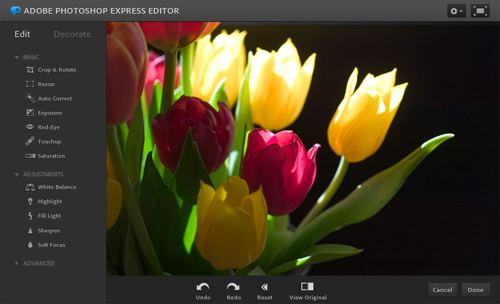
Now approaching its third year online, Adobe’s Web-based photo editing suite Photoshop Express underwent a significant redesign which launched Wednesday. Adobe Photoshop Express Editor, Organizer, and Uploader are included in the refresh.

Photoshop Express editor

Firstly, a Photoshop.com account is no longer needed to use Photoshop Express Editor. Users can simply navigate to the Web app, upload photos directly from their local drive, edit and change the photos, and then save them back on their local storage. Previously, an account was necessary, and photos were uploaded to online storage first before they were edited. This is still an option, as Photoshop.com members can still store and share photos online as well as create albums, but it’s no longer the only way to use the Editor.

Secondly, the Photoshop Express Uploader client application has been streamlined to make the desktop experience a bit more like the experience in Photoshop Elements, or in the Photoshop Express app for iOS and Android. The Uploader handles JPEG, PSD, and various RAW format files and automatically syncs them with a Photoshop.com account.

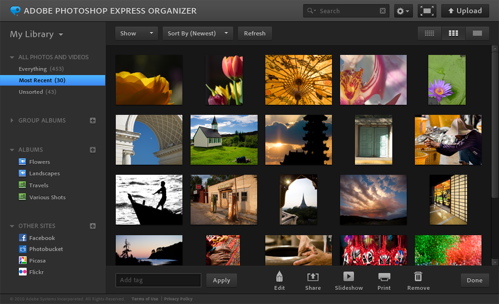
Photoshop Express Organizer

Finally, Photoshop Express Organizer and personal galleries have a new layout and design, which Adobe says are the result of user requests. Now, photo descriptions and comments are more visible, and images can be shared on standalone pages with more comprehensive EXIF data and the ability to leaf through pictures in “filmstrip mode.”

“All of our customers, from high-end professionals to more casual photo enthusiasts, want to do more with their digital photos on the web and on different devices,” said Matt Domenici, director of product
management for online and mobile digital imaging at Adobe. “We’ve redesigned our Photoshop Express online apps to make it easier and faster to work with photos online and then share them broadly.”

Copyright Betanews, Inc. 2010


Add to digg
Add to Google
Add to Slashdot
Add to Twitter
Add to del.icio.us
Add to Facebook
Add to Technorati


photoshop.comAdobe SystemsAdobe PhotoshopImage editingGraphics

Internet Explorer 9 makes cameo appearance on Microsoft Russia site

Microsoft’s gotten a little carried away with its Internet Explorer 9 excitement and posted an early screenshot of the browser up on its Russian site. The post and the image have since been diligently pulled, but not before Mary-Jo Foley managed to snag the pictorial evidence. What’s new to see? A resoundingly minimal interface, that’s what. The Chrome comparisons should be raining down thick and heavy if this snapshot is anything to go by, as Microsoft has done a fine job of ridding its browser from pesky menus, consolidated its controls into a few icons in the top right, and combined the search and address bars into one. Of course, given the earlier leak of screenshots, those menus could still just be hiding somewhere nearby, ready to spring at us. Another similarity to Chrome (and Firefox and Safari) is the new ability to “tear off” tabs from one window and reposition them independently. We’ll see how closely the Beta aligns to what we see here when it debuts for real on September. 15.

Internet Explorer 9 makes cameo appearance on Microsoft Russia site originally appeared on Engadget on Wed, 25 Aug 2010 11:35:00 EDT. Please see our terms for use of feeds.

Permalink   |  sourceZDNet  | Email this | Comments

Real-Time Conversations on Google Maps

Qilroy

Qilroy (pronounced as in ‘Kilroy was here’) allows you to start and join social networking conversations anywhere in the world.

To start using Qilroy simply type in a location (or let Qilroy discover it for you). You will then be presented with a stream of Twitter and Facebook messages from your location. You can join in any of the conversations by signing in with your Twitter account, your facebook account or a Qilroy account.

As well as the real-time stream of the latest messages you can view nearby messages on a Google Map. Using the map you can zoom into a location and view the latest messages posted from people at that location.

________________

Free Phonecall Integration on Its Way to Gmail? [Rumors]

Tech news site CNET reports that Google is testing voice calling directly inside Gmail, with free calls to the U.S. and Canada and very cheap international calls. Google hasn’t confirmed anything, but CNET’s screenshots (like the one above) look pretty convincing. The article also says its unclear whether the new feature would act as an extension of Google Voice (the popular one-number-to-rule-them-all service) or as a completely separate entity. The meaty part: More »


Updated: Firefox 4 Beta 4 Lands

An official announcement from Mozilla has yet to make its way to the official beta site, but we can report that Mozilla have selected the 3rd build candidate as beta 4.

There will be one final beta version in September, before Mozilla signs off on Firefox 4 which is scheduled to…