In a report from the Montreal Gazette, a text education course will be introduced in 100 Grade 7 classrooms across the country in a pilot program. If all goes well, a full program will be implemented this September.
The Grade 7 teachers who have agreed to set up a pilot course…
Google Reader Gets Smart, Tracks Updates on Feedless Web Sites [News]
 RSS, Atom, and other XML-formatted feeds revolutionized the way we keep up with our favorite web sites, allowing us to use newsreaders to track updates rather than bookmarks and constant refreshing. The only problem: Some sites don’t have RSS feeds.
The Google Reader team addressed this problem today, adding a new feature to allow users to track changes to any web site—even those that don't have their own feed.
These custom feeds are most useful if you want to be alerted whenever a specific page has been updated. For example, if you wanted to follow Google.org’s latest products, just type “http://www.google.org/products.html” into Reader’s “Add a subscription” field. Click “create a feed”, and Reader will periodically visit the page and publish any significant changes it finds as items in a custom feed created just for that page.
Here are some more example feeds for sites without feeds that you could follow:

Granted, we’ve seen webapps that create feeds for feedless sites in the past, but the integration into a popular newsreader like Google Reader is a big step. And while most sites worth their salt have feeds coming out their ears, others—like Bill Gates' recently launched Gates Notes—still don't, making the new feature a welcome update for anyone who's dealt with this frustration in the past.
Follow changes to any website [Google Reader Blog]

Microsoft’s Silverlight Client for Facebook released
Scott Guthrie, VP of Microsoft’s Developer Division, originally demonstrated a Silverlight client for Facebook during his PDC 2009 keynote late last year.
Today Microsoft has made the Silverlight Client available for Windows and Mac OS X users to install. The client requires Silverlight 4 and installs a simple link to the…
Make New Tabs Open at Far Right in Firefox 3.6 [Firefox 3.6]
 The official Firefox 3.6 release changed where new tabs open from clicked links—to the right of the tab they launched from. Liked it better the old way? Here's the quick fix.
The Mozilla Links blog points out a few about:config tweaks that Firefox 3.6 users might be interested in, especially if the new version handles things a bit differently than you're used to, and you don't want to spend time getting used to the new scheme. To set new tab behavior back to its old ways—opening in the right-most slot—enter about:config into your address bar, click that you’ll be careful, then enter browser.tabs.insertRelatedAfterCurrent into the search bar. Set that value to “False,” and your new tabs will open where they used to.
For more Firefox 3.6 tweaks, visit Mozilla Links’ post, which details tab preview behaviors in detail.
Firefox 3.6 tips and tweak [Mozilla Links]
Radio Tuna Combines Music Discovery and Internet Radio [Radio]
 If you’re looking for new music, you won’t find a shortage of music discovery services online. Almost all of them search their own music catalogs and not the vast assortment of online radio. RadioTuna brings music discovery to online radio.
Click on the image above for a closer look.
When you visit RadioTuna you can dive right in by searching by genre, artist, and song to begin listening. Radio stations suggested by RadioTuna are given rankings to show you how much of a certain type of music they play. You can bookmark radio stations you find and then review your listening history, see the play charts from your saved stations, and share the stations you listen to with friends through social networks like Facebook and Twitter.
RadioTuna provides a more in-depth method for discovering music online than simply searching a directory of radio stations and hoping to find one that plays songs you’d like. You can check out RadioTuna without signing up, but saving stations and your search history requires a free login. If you have a music discovery service you can’t live without, let’s hear about it in the comments.
Learning Windows 7: Manage Photos with Live Photo Gallery
If you’re moving from Vista to Windows 7, you might be wondering what happened to Windows Photo Gallery, or in XP you might have used another photo manager. Today we take a look at using Windows Live Photo Gallery from the Windows Live Essentials suite.
Windows Live Photo Gallery
Windows Photo Gallery was included in Vista and did an adequate job handling your photo needs. If you’ve moved to Windows 7, or are just looking for a new photo management tool, Windows Live Photo Gallery is certainly worth a look. Download the Live Essentials installer and select Photo Gallery and any other app from the list of you want to use.
Note: Keep in mind you don’t have to install them all…only the ones you want.

In the You’re almost done! screen, make sure to uncheck the boxes to set your search provider and homepage if you don’t want them changed.

After installation, to start using Live Photo Gallery click on Start and go to Windows Live \ Windows Live Photo Gallery.

The first time you launch it you’ll be prompted to sign in with your Windows Live account.

You might also want to use Live Photo Gallery to open TIF and BMP files.

Now you can start to view and manage your photos. If you hover the pointer over a thumbnail, you’ll get a larger view of it.

On the left side you’re able to browse through your picture directories, sort by date taken, and people or descriptive tags.

Click on an image to tag the photo with your own information or find out other photo data. It allows you to zoom in on an image, rotate them, rate a photo, start a slid show and more.

Another nice built in feature is being able to resize your photos. Right-click on an image in the gallery and select Resize. Now you can select between predefined sizes or your own custom size.

There is the ability to easily import your pictures from a camera or scanner using an easy to follow wizard.

You can include any folder into the gallery and monitors those folders for any new additions.

In Windows Live Photo Gallery Options you can specify different default actions it uses when importing pictures from different devices and media.

Also, you can determine how images will be tagged, so if you have several images from a few different trips for example, they can be easily found and organized.

Personalize your computer by adding your Photo Gallery in as your Screen Saver.

You can go in and do some basic edits to photos like adjusting color effects, fixing red eye, crop and straighten photos.

You can make blog posts, CDs, DVDs and more with your photos from Live Photo Gallery and other Live or Windows tools.

Live Photo Gallery allows you to publish photos to your SkyDrive, print them out, and share them with others via email.

It also includes the ability to save and share your images on flickr.

You can also find other plug-ins for it that will let you easily share your photos to other social sites like Facebook, Drupal, SmugMug, Picasa, and more.

Conclusion
Windows Live Photo Gallery offers a lot of features and is much enhanced over Photo Gallery included in Vista. This should get you started using Windows Live Photo Gallery to organize, edit and share your photos in Windows 7. Of course Live Photo Gallery is not only for Windows 7 users. It will run on XP (32-bit only), Vista and Windows 7 (32 & 64 bit versions). If you’re looking for an easy to use picture manager that offers several organization and sharing features for Windows 7, Windows Live Photo Gallery does a great job.
Download Windows Live Photo Gallery
Windows Live Photo Gallery Plug-ins

| Similar Articles | Productive Geek Tips |
| Latest Software Reviews | Tinyhacker Random Tips |
|
Learning Windows 7: Watch TV Programming Without a TV Tuner
Even if your computer doesn’t have a TV tuner card, you can still watch broadcast television programming with Media Center in Windows 7. Today we take a look at some of the features and how to get started.
Earlier this week in another Learning Windows 7 post, we showed you how to set up live TV in Windows Media Center (WMC). Not everyone has a TV tuner card and maybe can’t install one…in a laptop or netbook for example.
Update: This feature may not be available in all countries. Users who are in the UK should be able to use Sky Player which integrates into WMC. If you’re in the US and don’t see this option, make sure you have all of the latest updates for WMC.
Internet TV
Open up WMC and scroll down to TV then over to Internet TV.
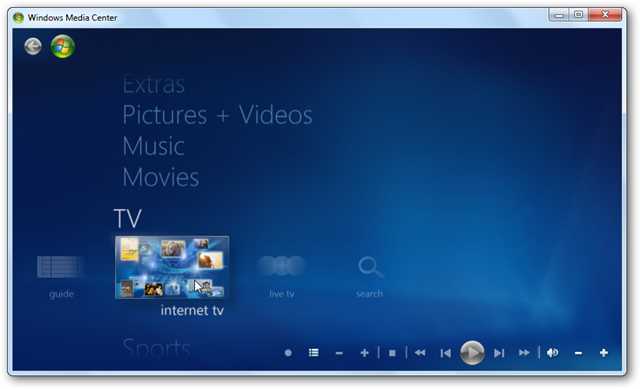
In the next screen, check that you accept the Terms of Service and click on Install.

The installation process begins…

Now you can begin browsing through the available programming, which varies from classics to the latest editions of your favorite news, Showtime and CBS shows.

Browse through Golden Globe winning shows and also Netflix (which requires a subscription).

Get the latest news and current events type programming such as 60 minutes and nightly news broadcasts.

CBS Classic is always a lot of fun too for checking out the old school shows.

Click on an episode to find out what it is about and its length…

If it’s your first time watching a show you may nee to install the latest version of Adobe Flash.

Now you can sit back and watch some of your favorite programming.

If you’re a fan of Desktop Gadgets, you can use the WMC one to scroll through shows from the gadget and launch them in WMC.

Conclusion
If you’re looking to watch TV on your computer, this is yet another way of quite a few methods, including several online options such as Hulu. This method is quick to setup and allows you to watch some limited programming on demand with WMC in Windows 7. Not all programs are full episodes, but does include clips from several of them. In the future we’ll be taking a look at some other types of Internet TV and video streaming options you can incorporate into WMC.
You might also want to check out Learning Windows 7: Setup Live TV in Windows Media Center
| Similar Articles | Productive Geek Tips |
| Latest Software Reviews | Tinyhacker Random Tips |
Ballmer Desecrates MacBook Pro [Horror]
 I thought this Ballmer’s autograph on a Macbook Pro was fake, but according to this video of the big man scribbling it, it’s not. Somewhere in a dark place, Jon Ive is bracing himself and sobbing. With a British accent.

How-to: Connect Your SkyDrive In Windows Explorer | mynetx – Windows Live Enhanced
Your web drive SkyDrive offers 25 GB of free storage that you can use from everywhere. However, uploading and accessing its contents from your web browser can get tiring. Unless you connect Windows Live SkyDrive to Windows Explorer.
Windows 7 way hotter than Vista off the line, now more popular than all OS X versions
 We learned back in November that Windows 7 was having a much (much!) better first few days in retail than Vista did when it launched, but now that the system has had a full quarter and change to make an impression, it looks as if that growth isn’t slowing down. According to new figures from Net Application, Win7 is achieving a higher level of market penetration in a faster amount of time than Vista did; after a month, Vista was stuck at 0.93 percent, while Win7 nailed the 4 percent mark. After two months, Win7 jumped to 5.71 percent, while Vista was barely over 2 percent after the same amount of time. ‘Course, the newest version of Windows had a holiday season to help it out right from the get-go, but there’s still no denying that people are flocking to the system even now. What’s most interesting, however, is that the overall market share of Windows 7 alone has now surpassed all OS X versions that are being tracked (10.4, 10.5 and 10.6), so put that in your pipe and smoke it. Smoke it long and hard.
Windows 7 way hotter than Vista off the line, now more popular than all OS X versions originally appeared on Engadget on Thu, 21 Jan 2010 21:14:00 EST. Please see our terms for use of feeds.

Riders promote Taman, reward Miller
The Saskatchewan Roughriders promotoed Brendan Taman to general manager Thursday and named head coach Ken Miller their vice-president of football operations.
Windows 7 growing faster than Vista, overtakes Mac OS
Windows 7 has already managed to capture more market share than all the Mac OS versions combined, and it’s also doing far better than Vista did in its early months. Copious charts inside.
Google Docs Now Allowing Any Type of File Upload [Screenshots]
 The semi-GDrive upload feature announced earlier this month has gone live, giving everyone with Google Docs a 1GB space to store, and share, files of any kind. Here’s a look at how it works.
Log into your Google Docs account, and you should see the notification pictured above, with a more streamlined “Upload” button next to the Create New item.
 You’ll arrive at the upload page, which offers a few neat features beyond simple file choosing. Check a box, and you can automatically convert your Word and other documents to “Google Docs format,” for actual online editing abilities, or you can just keep them stored for sharing and later downloading. That’s a nice control option for those who use Google Docs as a universal file manager, but don’t always love its conversion skills with certain formats. You can also pre-place your files in particular folders for better organization.
 After uploading your files or documents, you can see what percentage of your 1024 MB, or 1 GB, you’re using, and get links to share or send those files to others, including easy-to-fill Google Contacts.
 Where did your documents go, though? They’re in the “All Items” view, and can be shared, downloaded, or renamed, just like a regular file.
How do you like Google Docs’ file storage and sharing capabilities, compared to its many competitors? Speaking of which, it might be time to update that chart, no? Tell us how you’re finding the semi-GDrive useful, or not, in the comments.
Uploading any file : Uploading and exporting [Google Docs Help via Smarterware.org]
Aides Graffiti (NSFW)
How To Remove Advanced Virus Remover and Other Rogue/Fake Antivirus Malware
If you have a PC infected with Advanced Virus Remover, you’ll probably find that this is a tough one to get rid of. Thankfully we’ve got the instructions to help you defeat this terrible virus.
Advanced Virus Remover is one of many fake antivirus applications like Antivirus Live, which are really just rogue viruses that hold your computer hostage until you pay the ransom money. They tell you that your PC is infected with loads of viruses, even though it’s the only virus on your computer. The biggest problem with these things is that they block you from doing almost everything—you can’t use task manager, Safe Mode, or even install a real malware removal tool.
Advanced Virus Remover is Terrible!
This thing just covers your PC with messages about viruses that they claim you have…

There are popups, messages, and just dozens of windows that open…

Their goal, of course, is to get you to pay them.

Advanced Virus Remover is tricky… if you open an application more than once, it’ll block you from opening it again, preventing you from installing any anti-malware tools (I tried both SUPERAntiSpyware installed edition and MalwareBytes, no luck) Note that it also changes your wallpaper.

Advanced Virus Remover also prohibits you from heading into Safe Mode, where you at least might have a better chance of getting rid of it.
Removing Rogue Fake Antivirus Infections (General Guide)
There’s a couple of steps that you can generally follow to get rid of the majority of rogue antivirus infections, and actually most malware or spyware infections of any type. Here’s the quick steps:
- Try to use the free, portable version of SUPERAntiSpyware to remove the viruses.
- If that doesn’t work, reboot your PC into safe mode with networking (use F8 right before Windows starts to load)
- Try to use the free, portable version of SUPERAntiSpyware to remove the viruses.
- Reboot your PC and go back into safe mode with networking.
- If that doesn’t work, and safe mode is blocked, try running ComboFix. Note that I’ve not yet had to resort to this, but some of our readers have.
- Install MalwareBytes and run it, doing a full system scan. (see our previous article on how to use it).
- Reboot your PC again, and run a full scan using your normal Antivirus application (we recommend Microsoft Security Essentials).
- At this point your PC is usually clean.
Those are the rules that normally work. Note that there are some malware infections that not only block safe mode, but also prevent you from doing anything at all. We’ll cover those in another article soon, so make sure to subscribe to How-To Geek for updates (top of the page).
So, Let’s Remove Advanced Virus Remover!
Turns out that the answer to getting rid of this virus is really simple—you’ll just need to grab the free, Portable edition of SUPERAntiSpyware, which we’ve featured as our favorite must-have spyware removal tool, and put it on a flash drive (from another computer).
Then open it up on the PC, making sure to run the scan immediately. Don’t close it and re-open it, or Advanced Virus Remover will figure out what you’re doing and block you!

Once it’s all done, it’ll get rid of the bad stuff.

Then you’ll be prompted to reboot, which you should probably do.
If Advanced Virus Remover Blocks SUPERAntiSpyware
If you have an issue running SUPERAntiSpyware, you can try and use the following technique. Open up the Windows Run box with the Win+R shortcut key, or through the start menu. Then type in the following commands, hitting enter after each one.
taskkill /f /im winupdate86.exe
taskkill /f /im winlogon86.exe
Note that this may or may not help… the goal is to try and shut down the processes that are blocking you, and malware changes filenames all the time. You can also open up Windows Explorer, head into the Windows\System32 folder, and try and locate the bad processes there (hit the properties screen on some recent, odd-looking files), then use the taskkill command to get rid of them. This technique is how I usually figure out what the virus is hiding under, so I can easily kill it with just a few keystrokes.
Cleanup the Leftovers!
Since I never like to fully trust a single anti-malware tool, I usually run multiple passes from multiple malware removal tools. I highly recommend running a second pass with the free edition of Malwarebytes Anti-Malware. (see our previous article on how to use it).

You might notice some more messages popping up from the virus—in this case, my SUPERAntiSpyware definitions were out of date (because I wrote this article before the official portable version came out, so I was using my own hack to create a portable edition).
Just ignore any messages, and continue with the scan, letting Malwarebytes remove everything else.

At this point you’ll want to reboot your system, and then install Microsoft Security Essentials and run another full scan. Can’t hurt to be too cautious! We also highly recommend Microsoft Security Essentials for real-time protection against these types of things.
Note: If you used a thumb drive at any point during this process, you should make sure and scan that as well—I’ve had viruses hop over to the thumb drive, ready to infect the next machine.
| Similar Articles | Productive Geek Tips |
| Latest Software Reviews | Tinyhacker Random Tips |
2011 Ford Mustang GT Named As Daytona 500 Pace Car
The 2011 Ford Mustang GT is getting some major upgrades this year, including a new 5.0-liter 412-horsepower engine, and that’s enough to make it the pick for the pace car of the 2010 Daytona 500. It is the first Ford car picked to pace the race in 40 years.
HP shows off ‘wall of touch’ concept, touching optional

We’re not quite sure why HP didn’t bother setting one of these up at CES, but the company’s so-called “wall of touch” is apparently already in use by a handful of companies in prototype form, and HP has now shown it off to The Wall Street Journal. Interestingly, while you’re welcome to touch the wall all you want, you don’t actually have to, as it makes use of a camera-based system and a magnetic strip to detect where you’re pointing and when you near the wall. Of course, HP is mostly pitching this one towards companies intending to use these in public spaces (Continental Airlines has one of the first at the Houston Airport), but HP does say that if there’s enough interest it will turn it into a “mainstream product” — albeit a mainstream product that costs anywhere from “a couple thousand dollars” to $100,000 for something with more advanced features like HD video conferencing. Head on past the break for a quick video overview.
Continue reading HP shows off ‘wall of touch’ concept, touching optional
HP shows off ‘wall of touch’ concept, touching optional originally appeared on Engadget on Tue, 19 Jan 2010 15:20:00 EST. Please see our terms for use of feeds.
Star Trek 2009 Gag Reel
Read Kindle Books On Your Computer with Kindle for PC
Do you already own a Kindle or thinking about purchasing one? To day we look at a free E-Reader app from Amazon that allows you to purchase and read books from the Kindle Store, and makes syncing your computer and Kindle easier.
Note: Windows Only. Mac version coming soon.
Kindle for PC
This handy E-Reader is completely free and installs quickly.

Once it’s ready to go, you’re prompted to sign into your Amazon account. If you don’t have an account and don’t care to sign up for one, you can continue without registering.

After signing in you will see the user interface with a couple of balloon tips to get you started. The interface is very slick and intuitive compared to other E-Readers out there.

After you have a book loaded, you’ll get navigation controls, bookmarking, and “Go To” which lets you jump to a particular section of the book.

There are 10 different font sizes available.

You can bookmark any page in the book as well.
![sshot-2010-01-18-[00-45-10]](http://www.howtogeek.com/wp-content/uploads/2010/01/sshot20100118004510.png "sshot-2010-01-18-[00-45-10]")
You can navigate through the pages with your mouse or simply use the arrow keys.

You can access the Jumplist on the Windows 7 taskbar and choose from recent books and other options.

Click on the Menu option on the upper right to access settings, sync items, manage your registered Kindle, and send feedback about the app.

Because it’s in Beta the developers want to hear from you how they can improve it.

Buy and Download a Book
To browse the Amazon store, click on Shop in Kindle Store from the Kindle for PC interface.

When you find something you like, click on the Buy now with 1-click button and make sure its set to deliver to your Kindle for PC.

Then on the order confirmation screen click on the Go to Kindle for PC button to pull up the E-reader.

The Home page of the Kindle comes up and you’ll see what books have been downloaded and can monitor the download progress of the one you just bought.

Notice in the lower left corner of the reader you’ll see that it’s synching and checking for new items.

Another cool thing about the Whisperync feature is it lets you go to the last page you read of a book on the PC, a kindle device, or the iPhone app. So no matter where you read your books, there won’t be the hassle of finding where you left off.

You can sync and check for new items at any time from the button next to the Menu.

Once you start getting a larger collection of books, you can sort them by Title, Author, and Most Recent.

It’s still in Beta, and there isn’t a search feature or the ability to make annotations yet, but overall it works pretty well and is easy to use.

Conclusion
As of this writing it will run on XP, Vista, and Windows 7 but they have a Mac version on the way. Amazon does say the ability to create notes, search, and rotate images in the near future. Another thing to mention is it can make use of the Windows Touch feature in Windows 7, so if you have a touch screen laptop it essentially turns it into a free Kindle too. If you’re holding off on buying a Kindle and want to get a feel for how it all works, Kindle for PC is a good way to get started.
| Similar Articles | Productive Geek Tips |
| Latest Software Reviews | Tinyhacker Random Tips |