The Lifehacker Guide to 64-bit vs. 32-bit Operating Systems [Windows]

You’re probably aware that 64-bit and 32-bit versions of your operating system exist, but apart from ascribing to a bigger-is-better philosophy, you may have no idea what separates the two. The question: Should you use a 64-bit version of Windows, and why?

More and more frequently, users are installing the 64-bit version of their operating system of choice over the less capable 32-bit version. But most people don’t really have a full understanding of what the difference really is. Below, we’re taking a look at the most important differences so you can better understand what you gain (and potentially lose) if you upgrade to the 64-bit version of your OS. (The post focuses on Windows.)

We’ve already explained whether you really need 4 GB of RAM, a question that touches on the 64-bit issue, but now let’s tackle it in more detail.

Which Version Do I Have?

To figure out which version of Windows you are running, just head into the System properties in Control Panel, or you can take the easy route and right-click on your Computer icon in the start menu or desktop, and choose Properties from the menu. Windows 7 or Vista users will be able to check the System type in the list, while the few XP users with 64-bit will see it on the dialog.

Keep in mind that your CPU must support 64-bit in order to be running a 64-bit operating system—if you're running a modern CPU you should be fine, but some of the budget PCs don't include a 64-bit processor.

Does 32-bit Really Have a Memory Limit?

In any 32-bit operating system, you are limited to 4096 MB of RAM simply because the size of a 32-bit value will not allow any more. On a 32-bit system, each process is given 4 GB of virtual memory to play with, which is separated into 2 GB of user space that the application can actually use at a time.

Savvy readers might point out that modern chips support PAE, a processor technology that allows the operating system to use a little bit more memory—up to 64 GB, but it also requires special application support that most applications don't have or necessarily need.

A common misconception is that this is a Windows-specific problem, when in fact 32-bit Linux and Mac OS X have the same limitations and the same workarounds. 32-bit Linux uses a mapping table to allow access to the extra memory, and OS X Snow Leopard actually ships by default with a 32-bit kernel that can’t access all the memory on older systems, even though most of the rest of the OS runs 64-bit processes.

The 4 GB limit for Windows, at least, is also a factor of licensing—the home versions of 32-bit Windows, while technically being able to support PAE, have a hard limit of 4 GB for licensing and driver compatibility reasons.

More Problems with 32-Bit

Not only does 32-bit have a hard limit for the amount of memory it can address, there’s also another problem: your devices, like your video card and motherboard BIOS take up room in that same 4 GB space, which means the underlying operating system gets access to even less of your RAM.

Windows expert Mark Russinovich found that a desktop running 32-bit Windows with 4 GB of RAM and two 1 GB video cards only had 2.2 GB of RAM available for the operating system—so the bigger and better your video cards get, the less of that 4 GB will be accessible on a 32-bit system.

What’s Different About 64-Bit?

While 32 bits of information can only access 4 GB of RAM, a 64-bit machine can access 17.2 BILLION gigabytes of system memory, banishing any limits far into the future. This also means that your video cards and other devices will not be stealing usable memory space from the operating system. Windows 64-bit Home editions are still limited to 16 GB of RAM for licensing reasons, but the Professional and Ultimate versions can use up to 192 GB of RAM, so keep that in mind when building that killer system.

The per-process limit is also greatly increased—on 64-bit Windows, instead of a 2 GB limit, each application has access to 8 TB of virtual memory without any special API, a huge factor when you consider applications like video editing or virtual machines that may need to use enormous amounts of RAM.

On Windows, the 64-bit versions also come with a technology to prevent hijacking the kernel, support for hardware-enabled data execution protection, and mandatory digitally signed 64-bit device drivers. You also won’t be able to use your 16-bit apps anymore, which hardly seems like a loss.

Do 32-bit Applications Work on 64-Bit?

The vast majority of your 32-bit applications will continue to work just fine on 64-bit Windows, which includes a compatibility layer called WoW64, which actually switches the processor back and forth between 32-bit and 64-bit modes depending on which thread needs to execute—making 32-bit software run smoothly even in the 64-bit environment.

There are some exceptions to that rule, however: 32-bit device drivers and low-level system applications like Antivirus, shell extensions that plug into Windows, and some media applications simply won’t work without a 64-bit equivalent.

In practice, the vast majority of your favorite applications will either continue to work, or provide a 64-bit version you can use instead—but you should check to make sure.

Does 64-Bit Use Double the RAM?

A common misconception about 64-bit Windows is the amount of RAM that is actually used—some people seem to think it will use double the RAM, while others incorrectly assume a 64-bit system will be twice as fast as 32-bit.

While it's true that 64-bit processes will take a little extra memory, that is a result of the memory pointers being a little bigger to address the larger amount of RAM, and not an actual double in size. Imagine, if you will, an ancient library filing system that has a card to tell you where to find the book in the library—if you got a bigger box to hold the cards, the library would not double in size, you'd just be able to find the book you were looking for more easily.

What will increase with 64-bit Windows is the amount of drive space needed for the operating system—with a compatibility layer in place, the base OS will take up a few extra GBs of space, though with today's massive hard drives that should hardly be a concern.

The Bottom Line, Which Should I Use?

If you are ordering a new PC with 4 GB or more of RAM, you should probably be running a 64-bit version of Windows so you can use all of the available memory, especially if you want a rig with a large video card—just keep in mind that the Home versions only support 16 GB of RAM (for most people a 16GB limit won't be a problem, but it's worth keeping in mind).

If you’re running Mac OS X, you don’t need to worry about 32-bit vs 64-bit, and if you’re running Linux, you probably know this stuff already.


What about you? Have you made the switch to a 64-bit operating system? Let’s hear what you’re using, and how long you’ve been living the 64-bit life, in the comments.

The How-To Geek has banished 32-bit operating systems entirely from his house. His geeky articles can be found daily here on Lifehacker, How-To Geek, and Twitter.


Export Your iGoogle Homepage to Another Account

If you’re a fan of iGoogle, you probably have a perfect setup with RSS Feeds, Themes, and other gadgets just how you like it. Today we take a look at exporting those settings into another Google account so you don’t have to rebuild your favorite homepage.

iGoogle

For those of you who don’t know what iGoogle is, it’s a customizable homepage that contains the Google Search box and then your personalized gadgets. There are tons of different things you can add like news, weather, Gmail, stock reports, RSS feeds from any site, games, movie times…etc. In fact you can even design your own iGoogle gadget if you want. It also lets you pick custom themes, move the gadgets around, and create new tabs for even more gadgets.

1ig

If you have been customizing your iGoogle homepage to perfection over several months, it would certainly be painful to have to start over if you needed to change accounts. To export and save the settings click on My Account located in the top right hand corner of the homepage.

2ig

Then under My Products click on the Settings link next to iGoogle.

3ig 

Scroll all the way to the bottom of the iGoogle Settings page and click on Export iGoogle settings to your computer.

4ig

Save the XML file to a location on your hard drive.

5ig

Now when you sign into your different account go to the bottom of the Settings page. This time browse to the location of your saved iGoogle XML document and then click on Import.

6ig 

It only takes a second for the import to complete and when it does, go to the homepage and you’ll have everything there exactly how it was in your old account. This quick tip will save a lot of time and frustration when moving between Google accounts.

Create Your iGoogle Homepage

Similar Articles Tinyhacker – Tiny Geek Hacks
Latest Software Reviews Super User Daily

LogMeIn Express Makes Screensharing Simple [Downloads]

Windows: LogMeIn Express is a screensharing tool from the makers of the popular remote-desktop software, LogMeIn. With this new offering, sharing your desktop is as simple as sending your friend or associate a URL.

Only the person doing the screensharing needs to download anything. The sharer only requires a small application from LogMeIn, the viewer only needs to visit the LogMeIn Express site and plug in the number that the sharer has given them.

Once they plug in the number you'll approve them for viewing and—if you desire—remote control. You can send them files, chat with them via the LogMeIn Express control panel, pause the screencasting, disconnect individual users, or shut down the screen sharing all together.

The connection is secured using 256-bit SSL encryption and you can share with up to 100 users. On our test machine no setup or firewall tweaking was required to connect to remote machines and transfer files. LogMeIn Express is free and requires Windows XP and above.


The De-Evolution of Playstation Gaming Controllers [Image Cache]

As the guys at Autour D’un Cafe pointed out, the Playstation controller has de-evolved over the years. There was a lot of inbreeding at first, but that changed after a night of heavy drinking.

As the story goes, the DualShock got it on with a '60s era Baterang and the Gaming Gods retaliated—smiting their unholy spawn. This event cleared the slate, so to speak, and the evolutionary process started all over again. [Autour D’un Cafe via Geekologie]


Googsystray Notifies You of New Activity Across Google Services in One System Tray App [Downloads]

Windows/Linux only: Google has so many different services these days that installing a notification app for each one gets cumbersome quickly. Free system tray utility Googsystray watches Gmail, Google Voice, Calendar, Reader, and Wave so you can set it and forget it.

After installing Googsystray, you can configure which services you want it to watch and what you want it to do for each—upon receiving a new email, SMS, calendar alert, RSS article, or wave, you can have it play a sound and even run a command. The icon of the given service will also pop up in your system tray. Right clicking on it gives you a Growl-style popup with more detailed information about the notification, such as email subject or SMS content. You also have limited actions you can take depending on the service.

Google Voice is the most feature-filled, allowing you to send SMS messages with a hotkey and read voicemail transcripts. You can have Gmail monitor your inbox or specific labels for new messages, as well as mark messages as read, spam, or delete them. Google Calendar support is limited to alerts on upcoming events, and Google Reader can notify you of new RSS articles, although you can tell it to stop notifying you when the number of unread articles reaches a certain point. Google Wave support merely notifies you of new and unread waves, along with a preview.

Googsystray is a free download, works on Windows and Linux (Python and pygtk required for Linux). Thanks, Aldeniszen!

Googsystray [Sourceforge]


Archos 9 Tablet (Retail) Unboxing and Overview Video.

Thanks very much to Mobilx.eu who have sent one of their first Archos 9 devices to us for a week of testing and hands-on. You’ll remember hearing about this earlier in the year and getting a launch at IDF in September but it’s taken a long time to reach the hands of end-users. There are a few early devices out there already but not many hands-on and unboxing videos. Here’s my contribution.

Live Review was recorded and is available here.

I’ve been testing a lot since doing the video and haven’t seen anything that has changed much from my last testing session with it. Battery life is a very sold 3hrs (wifi on, screen 50%), the Windows 7 build is ‘Starter Edition’ it comes with a 60GB hard drive, 1GB RAM and the 1.1Ghz Intel Atom processor.

I will be preparing the device for a full hands-on demo and Q&A for tomorrow’s live session. Hope to see you there.

Related posts:

  1. Live Today, Live Tomorrow with the Archos 9. Details on live coverage of the Archos 9 and the…
  2. Archos 9 release announced at IDF, October 22nd, $499 Update: Hands-on video and full specifications. The title says most…
  3. Archos 9 hands-on at Gizmodo. Positive. It’s only an early hands-on of the Archos 9 (they’ve…

The Heart of Dartness Determines Your Dartboard Sweet Spot [Games]

Every so often, your uncoordinated hands get wrangled into a game of barroom darts. If you’d like a better chance at victory instead of apologies, a few Stanford students’ webapp can analyze your game and provide your personal best-chance target.

As Wired’s write-up explains, darts is a game where the difference between hitting a 20 or a 1 is very, very small, and always aiming at the bullseye isn’t a good long-term strategy. Facing down his own non-expert tossing skills, Ryan Tibshirani wrote an app that analyzes 50 of your throws and figures out where you should aim for your best chances at a high score.

The webapp requires Java to run, and doesn't account specifically for specialty games like cricket—although, in most games, a high score is never a bad thing. If you've got your own strategies for faking it like a billiards room hero, tell us about it in the comments.

The Heart of Dartness [stat.stanford.edu via Wired]


Google Contacts Can Kill Duplicates in Bulk [Annoyances]

If you sync your Google contacts between multiple devices or pull from multiple email accounts, you’ve probably got quite a few duplicate entries. Now your Google and Gmail contacts let you kill those dupes en masse with a single button.

Hit up your contacts from Gmail, or head to google.com/contacts, and hit the “Find duplicates” button in the lower-right area. You’ll be provided with the list of contacts with at least 2 entries each, which you can view in expanded form, and then either merge together or kill off. Not that this is some new-fangled tool or an advanced feature, but I know at least a few Google users’ primary annoyances with contacts can be salved, if not cured, with this little button.


Microsoft launches Games on Demand

As reported on Kotaku, Microsoft has officially launched their latest effort to deliver PC games directly to users via the Internet. After creating a Gamertag and downloading the Games for Windows – LIVE software, you will have instant access to many popular titles. These are the games which are currently featured: 1. Shadowrun 2. Viva Piñata 3. Battlestations: Pacific 4. DiRT 2 5. Fallout 3 6. Red Faction: Guerilla 7. Resident Evil 5 8. Street Fighter IV NOTE: For a limited time, Shadowrun and Viva Piñata are on sale for 50% off. Other titles, such as Section 8 and Hot Import Nights, are said to be available as well.

Read full story…

How To Manage Hibernate Mode in Windows 7

If you don’t use the Hibernate option in Windows 7, you can save some disk space by disabling it. Here we will look at a few different ways to manage hibernate options in Windows 7.

Note: Hibernate mode is not an option on systems with 4GB of RAM or more.

Enable or Disable Hibernate Through Command Prompt

Using the Command Prompt might be the easiest way to enable or disable Hibernation. Click on Start and type CMD into the search box and it will be listed under programs. Right-click on the icon and select Run as administrator.

6hi

The Command Prompt opens and you will use the following to enable Hibernation.

powercfg /hibernate on

7hi

Type in the following to disable hibernation.

powercfg /hibernate off

7hi

Manage Hibernation Through Control Panel

Click on Start and open Control Panel then click on Power Options.

1hi

On the left side click on Change when the computer sleeps.

2hi

Now click on Change advanced power settings.

3hi

In the Advanced Power Options window expand the Sleep tree then expand Hibernate after and change the minutes to zero to turn it off. Or you can specify the amount of minutes you want to pass before it goes into hibernation. After you’ve made your selection click Apply and Ok then close out of the remaining screens.

8hi

Where is Hibernate?

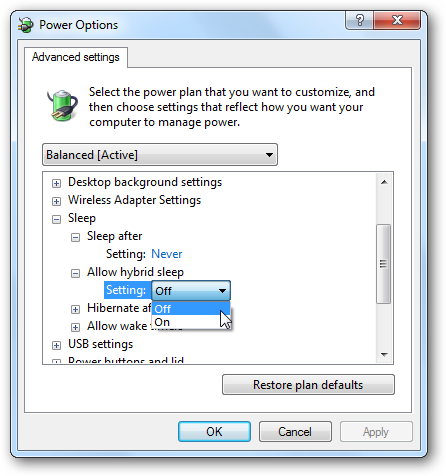
What if you try the command line option to turn it on and Hibernate mode still isn’t available? Then what you’ll want to do is disable Hybrid Sleep by expanding Allow hybrid sleep and turning it Off.

10hi

Now you should have Hibernate and Sleep as part of the power options in the start menu and will also be an option when you hit Ctrl+Alt+Del.

11hi

Disable Hibernate Through Regedit

Note: Changing registry values can cause your computer to become unstable or stop functioning and is only recommended for experienced users. 

Now that the disclaimer is out of the way…you might want to completely disable Hibernate mode through a registry edit. Open the Registry and browse to HKEY_LOCAL_MACHINE \ SYSTEM \ CurrentControlSet \ Control \ Power and change both HiberFileSizePercent and HibernateEnabled value data to zero. After you’ve made the changes close out of the Registry Editor and restart the machine.

sshot-2009-12-11-[19-45-39]

If you always turn off your computer or never do, you can disable the Hibernate mode to gain a bit of extra hard disk space. On our Windows 7 (32-bit) machine with a 300GB hard drive, disabling Hibernation gained us just over 3GB of more disk space. That may not seem like much especially with today’s high capacity drives, but if you don’t need Hibernation, why not reclaim that space?

Similar Articles Tinyhacker – Tiny Geek Hacks
Latest Software Reviews Super User Daily

Understanding the Windows Pagefile and Why You Shouldn’t Disable It [Mythbusting]

As a tech writer, I regularly cringe at all the bad tweaking advice out there, and disabling the system pagefile is often a source of contention among geeks. Let’s examine some of the pagefile myths and debunk them once and for all.

What is a Pagefile and How Do I Adjust It?

Before we get into the details, let’s review what the pagefile actually does. When your system runs low on RAM because an application like Firefox is taking too much memory, Windows moves the least used “pages” of memory out to a hidden file named pagefile.sys in the root of one of your drives to free up more RAM for the applications you are actually using. What this actually means to you is that if you’ve had an application minimized for a while, and you are heavily using other applications, Windows is going to move some of the memory from the minimized application to the pagefile since it’s not being accessed recently. This can often cause restoring that application to take a little longer, and your hard drive may grind for a bit.

If you want to take a look at your own pagefile settings, launch sysdm.cpl from the Start menu search or run box (Win+R) and navigate to Advanced –> Settings –> Advanced –> Change. From this screen you can change the paging file size (see image above), set the system to not use a paging file at all, or just leave it up to Windows to deal with—which is what I'd recommend in most cases.

Why Do People Say We Should Disable It?

Look at any tweaking site anywhere, and you'll receive many different opinions on how to deal with the pagefile—some sites will tell you to make it huge, others will tell you to completely disable it. The logic goes something like this: Windows is inefficient at using the pagefile, and if you have plenty of memory you should just disable it since RAM is a lot faster than your hard drive. By disabling it, you are forcing Windows to keep everything in much faster RAM all the time.

The problem with this logic is that it only really affects a single scenario: switching to an open application that you haven’t used in a while won’t ever grind the hard drive when the pagefile is disabled. It’s not going to actually make your PC faster, since Windows will never page the application you are currently working with anyway.

Disabling the Pagefile Can Lead to System Problems

The big problem with disabling your pagefile is that once you've exhausted the available RAM, your apps are going to start crashing, since there's no virtual memory for Windows to allocate—and worst case, your actual system will crash or become very unstable. When that application crashes, it's going down hard—there's no time to save your work or do anything else.

In addition to applications crashing anytime you run up against the memory limit, you'll also come across a lot of applications that simply won't run properly if the pagefile is disabled. For instance, you really won't want to run a virtual machine on a box with no pagefile, and some defrag utilities will also fail. You'll also notice some other strange, indefinable behavior when your pagefile is disabled—in my experience, a lot of things just don't always work right.

Less Space for File Buffers and SuperFetch

If you’ve got plenty of RAM in your PC, and your workload really isn’t that huge, you may never run into application crashing errors with the pagefile disabled, but you’re also taking away from memory that Windows could be using for read and write caching for your actual documents and other files. If your drive is spending a lot of time thrashing, you might want to consider increasing the amount of memory Windows uses for the filesystem cache, rather than disabling the pagefile.

Windows 7 includes a file caching mechanism called SuperFetch that caches the most frequently accessed application files in RAM so your applications will open more quickly. It's one of the many reasons why Windows 7 feels so much more "snappy" than previous versions—and disabling the pagefile takes away RAM that Windows could be using for caching. Note: SuperFetch was actually introduced in Windows Vista.

Put the Pagefile on a Different Drive, Not Partition

The next piece of bad advice that you’ll see or hear from would-be system tweakers is to create a separate partition for your pagefile-which is generally pointless when the partition is on the same hard drive. What you should actually do is move your pagefile to a completely different physical drive to split up the workload.

What Size should my Pagefile Be?

Seems like every IT guy I've ever talked to has stated the "fact" that your pagefile needs to be 1.5 to 2x your physical RAM—so if you have a 4GB system, you should have an 8GB pagefile. The problem with this logic is that if you are opening 12 GB worth of in-use applications, your system is going to be extremely slow, and your hard drive is going to grind to the point where your PC will be fairly unusable. You simply will not increase or decrease performance by having a gigantic pagefile; you'll just use up more drive space.

Mark Russinovich, the well-known Windows expert and author of the Sysinternals tools, says that if you want to optimize your pagefile size to fit your actual needs, you should follow a much different formula: The Minimum should be Peak Commit – Physical RAM, and the Maximum should be double that.

For example, if your system has 4GB of RAM and your peak memory usage was 5GB (including virtual memory), you should set your pagefile to at least 1GB and the maximum as 2GB to give you a buffer to keep you safe in case a RAM-hungry application needs it. If you have 8GB of RAM and a max 3GB of memory usage, you should still have a pagefile, but you would probably be fine with a 1 GB size. Note: If your system is configured for crash dumps you'll need to have a larger pagefile or Windows won't be able to write out the process memory in the event of a crash—though it's not very useful for most end-users.

The other size-related advice is to set the minimum and maximum size as the same so you won’t have to deal with fragmentation if Windows increases the size of the pagefile. This advice is rather silly, considering that most defrag software will defragment the pagefile even if Windows increases the size, which doesn’t happen very often.

The Bottom Line: Should You Disable It?

As we’ve seen, the only tangible benefit of disabling the pagefile is that restoring minimized applications you haven’t used in a while is going to be faster. This comes at the price of not being able to actually use all your RAM for fear of your applications crashing and burning once you hit the limit, and experiencing a lot of weird system issues in certain applications.

The vast majority of users should never disable the pagefile or mess with the pagefile settings—just let Windows deal with the pagefile and use the available RAM for file caching, processes, and Superfetch. If you really want to speed up your PC, your best options are these:

On my Windows 7 system with 6GB of RAM and a Windows-managed pagefile, every application opens quickly, and even the applications I haven’t used in a while still open almost instantaneously. I’m regularly running it up to 80-90% RAM usage, with dozens of application windows open, and I don’t see a slowdown anywhere.

If you want to read more extremely detailed information about how virtual memory and your pagefile really work, be sure to check out Mark Russinovich’s article on the subject, which is where much of this information was sourced.


Don't agree with my conclusions? Voice your opinion in the comments, or even better—run some benchmarks to prove your point.

The How-To Geek has tested pagefile settings extensively and thinks everybody should just upgrade to Windows 7 already. His geeky articles can be found daily here on Lifehacker, How-To Geek, and Twitter.


TorrentFreak’s Most Popular Torrent Sites of 2009; Demonoid Returns [BitTorrent]

All-things BitTorrent weblog TorrentFreak broke down the numbers and rounded up the 25 most popular torrent sites of 2009. The results represent several best-known sites (like The Pirate Bay), but also probably a few you're not all that familiar with. Incidentally, number 20 on the list, Demonoid—a hybrid public and private tracker that we've always liked despite its recent downtime—is back up and running. And while we’re on the subject, feel free to share your BitTorrent search engine of choice in the comments. [Top 25 Most Popular Torrent Sites of 2009 (Warning: Link contains one very small but NSFW thumbnail image of one of the sites)]