Microsoft announced that they have removed the netbook restrictions that previously prevented OEM and ODM from installing any version of Windows 7 on their netbook. The lifted restriction means OEM and ODM can install Windows 7 starter on a netbook, and that the three application restriction has been removed as per consumer's request. "OEMs and ODMs have the choice to install any version of Windows on a netbook," a Microsoft UK spokesperson said. "[But] Starter is an entry version and doesn't have many of the consumer or business features.
Fleury retires ‘a Calgary Flame’
Forward Theoren Fleury announced his retirement on Monday, three days after the Calgary Flames released the 41-year-old despite the fact he posted four points in four pre-season games.
Auto Shutdown Lets You Schedule Tasks Upon Download Completion [Downloads]
 Firefox: If you hate leaving your computer running until you return because a download needs to be completed, Auto Shutdown will shut down the computer, among other tasks, when the download completes.
Auto Shutdown has a large list of commands for various operating systems. You can easily tell Auto Shutdown to power down your computer, hibernate/sleep, or even execute an external command—you could for instance, have Auto Shutdown run the update package you're downloading once the download is complete.
Auto Shutdown is free and works wherever Firefox does.
Auto Shutdown [via MakeUseOf]

Windows 7 coming to netbooks in all its myriad flavors

It would seem that the humble netbook owner’s Windows 7 options just keep improving as the grand new OS comes closer to release. After plans to limit netbooks to running three apps at a time were thankfully scrapped, Microsoft has now confirmed with us that it is going to allow OEMs to splash any version of Windows 7 they desire onto their Atom-powered miniature laptops. That’s right, you can totally rock Windows 7 Ultimate and Aero visualizations on a machine that can handle neither. Joking aside, it’s pleasing to see the Redmond brain trust steer clear of arbitrary limitations on customer choice.
[Via GadgetMix]
Filed under: Laptops, Software
Windows 7 coming to netbooks in all its myriad flavors originally appeared on Engadget on Mon, 28 Sep 2009 05:42:00 EST. Please see our terms for use of feeds.
Read | Permalink | Email this | Comments
Website rates best and worst cellphones by radiation output levels — how does yours stack up?

You’re surely aware that your cellphone bleeds radiation into your face the whole time you’re on the phone with your mom, best friend or lover, right? Yes, it’s a fact we try not to think about most of the time, but now there’s a tool out there on the internets for the more reality-facing folks among us. The Environmental Working Group’s launched a website dedicated to rating cellphones on their radiation output alone. Ranking highly (meaning they put out the lowest levels of radiation) are the Motorola RAZR V8, and AT&T's Samsung Impression. In fact, it seems that Samsung is cranking out the healthiest phones these days! Phones with poor showings includes T-Mobile’s myTouch 3G and the Blackberry Curve 8830. So hit the read link and tell us, how does your phone rate?
[Via bookofjoe]
Filed under: Cellphones
Website rates best and worst cellphones by radiation output levels — how does yours stack up? originally appeared on Engadget on Sun, 27 Sep 2009 08:27:00 EST. Please see our terms for use of feeds.
Read | Permalink | Email this | Comments
Phoenix’s New Laptop BIOS Boots Windows 7 in 10 Seconds [Laptops]
That’s Windows 7, not a mini-Linux OS like Splashtop. It’s also from a powered-off state, not sleep mode. Pretty impressive. And much of that speed comes from turning on a laptop’s devices (hard disk, ports, etc) in just 1 second.
Phoenix's Instant Boot BIOS is UEFI based, which means it can turn on those devices simultaneously to hit that roughly 1 second mark. Regular BIOS types—used by most current notebooks—turn on devices one at a time. That's why it takes up to 10 seconds before the operating system even gets the chance to load.
In this demo from the Intel Developer’s Forum, a Lenovo T400s boots a usable Windows 7 desktop in about 10 seconds. It’s also helped by a solid-state hard disk, a clean install without any crap-ware, and by not running fancy Aero graphics. Bottom line: Nice, but I’d like to see more of a real world scenario.
Phoenix says it can improve that time further with tweaks specific to individual laptops. It didn’t say if any big names had signed the tech up, but I’m thinking some will. Waiting for your laptop to load is an inconvenience we’ve learned to live with, but I’d pay a little extra to make it a thing of the past. What about you? [LAPTOP Magazine and GottaBeMobile]

France May Regulate Photoshopped Photos
 In France, where the premium on beauty and image is high as can be, a newly proposed law may be the first hint of a movement against the unabashed vanity which has become its trademark.
French lawmakers, concerned about the adverse effects that images of digitally-enhanced celebrities may have on the country’s collective body image issues, have introduced a law that would require airbrushed photos to carry a disclaimer revealing their inauthenticity. The Telegraph reports that the legislation, if passed, would cover photos in newspapers, magazines, political campaigns, and even art photography. The tag accompanying any altered picture would read, “Retouched photograph aimed at changing a person’s physical appearance.”
Continue reading France May Regulate Photoshopped Photos
Filed under: Web
France May Regulate Photoshopped Photos originally appeared on Switched on Fri, 25 Sep 2009 14:18:00 EST. Please see our terms for use of feeds.
Read | Permalink | Email this | Comments
Fleury’s legs ‘just aren’t where they need to be’: GM
The drive was there but Theoren Fleury’s legs just couldn’t keep up, and that’s why Calgary released the popular forward on Friday during the latest round of roster cuts, ending the former captain’s bid to make a comeback with the Flames.
End of the road for Fleury
Theoren Fleury's fairytale comeback with the Calgary Flames is over.
The National Hockey League team confirmed Friday that the 41-year-old has been released from his try-out.
“I believe Theoren did a great job and should be proud, especially considering all the factors including age, time away from the game and lifestyle change,” said Flames general manager Darryl Sutter. “This is not a hockey story; it’s a life story. Our agreement with Theoren was that he had to be one of our top six wingers and there were never any intentions of assigning him to the American Hockey League.”
For the second day running, Fleury was not on the ice during Flames practice Friday. On Thursday, the team said he missed out due to "maintenance" after playing three games in four nights.
“I am very thankful to Darryl and the Flames organization for following through on the commitment to provide me with this opportunity,” Fleury said in a statement. “I said in the beginning that no matter what the outcome, this would be a success story. I intend to take the next few days to review this experience and make decisions with my family regarding next steps in my life.”
When contacted by the Herald Friday morning, Fleury said he didn't want to comment further and needed time to digest the news before facing the media.
Fleury's comeback bid got underway Sept. 10 when he received the all-clear from commissioner Gary Bettman and thirty-six hours later, he accepted a tryout offer from his hometown Flames.
In four pre-season games, the five-foot-six winger picked up four points and was plus-four. He scored the winning shootout goal in his first game back, against the New York Islanders.
On Thursday, Flames coach Brent Sutter hinted that the Fleury fairytale may be coming to an end.
"He's certainly done a good job and, yet, there's a lot of good players here," said the Flames' new bench boss. "The pace of the game is going to pick up 10-fold here starting next week. So let's just see what happens."
It's unclear whether Fleury has any offers from other National Hockey League teams.
The Flames play their final pre-season game Saturday against the Canucks and still need to trim their roster before next Thursday's season-opener, also against the Canucks.
Gretzky steps down as Coyotes head coach
Wayne Gretzky stepped down Thursday as head coach of the bankrupt Phoenix Coyotes.
Archos 9 release announced at IDF, October 22nd, $499
 The title says most of what you need to know. Archos has announced the official launch for the Archos 9, which will be on October 22nd in two colors (white and black), and the unit will run $499! Here are the specs:
- Atom Z510 1.1GHz CPU
- 1024×600 9” resistive touchscreen
- 1GB of RAM
- 60GB HDD
- Windows 7 Starter
- 4 hours of battery life
- 800 grams
I have to say that I’m really impressed with that price. I couldn’t see the Archos 9 going anywhere if it were $600+, and $499 is a great surprise.
Check out Chippy’s recent hands-on with the 16mm thin device.
Related posts:
- Chippy goes hands-on with a video overview of the sleek Archos 9! One of the more intriguing devices that we’ve been…
- Archos 9 and UMID M2 picture sets Chippy’s spent a lot of time bringing us some quality…
- Archos 9 hands-on at Gizmodo. Positive. It’s only an early hands-on of the Archos 9 (they’ve…
How to Create a System Image in Windows 7
The new backup utilities in Windows 7 are actually pretty impressive and creating an image will be possible in all versions. Today we take a look at creating a backup image of your machine without the need for a third party utility like Ghost or True Image.
You just just finished installing a fresh copy of Windows 7 on your computer and have it set up to your liking. One of the first things you should do now is create an image of the disc so in the event of a crash you will be able to restore it to its current state. An image is an exact copy of everything on the drive and will restore it back to its current state. It’s probably best to create an image when everything is clean and organized on your system. This will make the image file smaller and allows you to restore the system with a smooth running set up.
Creating an Image in Windows 7
Click on Start go to Getting Started and then select Back up your files.
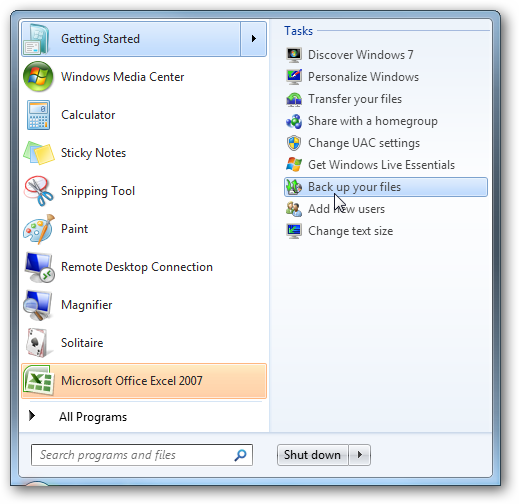
Next click on the Create a system image hyperlink.

Decide where you want to save the image. You can choose an external drive, burn to multiple DVD’s, or store it on a network location.

You can include other drives if you want as well but remember that will add to the size of the final image.

At the confirmation screen notice the amount of space the image may take. If something doesn’t look right you can still go back from this point and make adjustments.

A progress meter is displayed while the images is created and backed up. In this example a disk of about 15GB in size took under 20 minutes backed up to an external drive. Times will vary depending on your system and where you’re backing it up to.

After the process is complete you get the option to create a system repair disc which you should do and make sure to save it in a secure location.


When it comes time to restore the image, you will be able to use the System Recovery Options to get the system back.

Image in Windows Vista
Vista Ultimate, Business, and Enterprise allow you to create an image, but Vista Home and Home Premium users do not have the option. The process is similar in Vista, type backup into the search bar and click on Backup and Restore Center.

Then click on Back up computer and the wizard will guide you through the process.

Conclusion
This is a extremely handy feature and it actually works well. It is also nice that the feature will be available in each edition of Windows 7 instead of just the higher end versions. This will save you some money in not having to spend $50-80 on a third party utility. You should create an image when everything is fresh on your system so the image is not too large and the essentials of you machine can quickly be restored. For instance I created an image after a fresh install and putting Office 2007 and a few of my most commonly used programs. The entire image came in around 10 GB which is easily stored on an external drive or a few DVD’s.
| Similar Articles | Featured Wiki Articles |
| Latest Software Reviews | Super User Daily |
| Geek Arcade | Popular Forum Threads |
Intel Core i7 Mobile Unleashed, Benchmarks Prove Fastest Laptop Processor EVER [Intel]
 Laptops got a hell of a lot faster today. We’ve been waiting for Intel to bring out its mobile version of Core i7 and today it did. The benchmarks are in and they say it’s fast. Really freaking fast.
Just like the Core i7 chip for desktops, the mobile version (formerly called Clarksfield) is meant for handling heavy computing tasks — gaming, video editing, and other programs that require faster processing speed.
What makes the chips so fast and oh so capable? The quad-core family of processors use Intel’s Turbo Boost Technology, which can accelerate the processor clock speed up to 75 percent when you need more power. Basically the processor will change the clock speed depending on your power consumption, the processor temperature and the number of cores being used. That is just a primer and we promise to have a more in depth Giz Explains soon.
But what does it all mean in terms of improvement? LAPTOP Magazine found out that the fastest 2.0 GHz Intel Core i7 920QM CPU (there are two other versions with lower clock speeds) “shredded through every benchmark record” in the books. When tested against other dual core and quad core laptops the Core i7 model tore it up every time. It wrecked the synthetic benchmarks, but also cut down video transcoding times and kicked ass on frame rates while playing Far Cry 2. Hit up the link below for more detailed charts and scores.
You will have your choice of Core i7 mobile lappies with ones arriving today coming soon from Dell, Toshiba, ASUS and Alienware, HP. While some are super high end, others are actually reasonably priced. [LAPTOP Magazine, Intel]
Google exec says Canada missing web’s potential
Canadian businesses are lagging behind their peers in other developed countries when it comes to advertising online, according to one of Google’s top executives.
Water Found on the Moon
Our moon may not be so dry after all, in fact, findings suggest there’s water everywhere.
The Beginner’s Guide to Tricking Out Your WordPress Blog [WordPress]
 You took the leap and installed WordPress to host your own blog because you want complete control over how it looks and works. Now, it’s time to power it up, lock it down, and make your blog completely yours.
What You’re In For
With all the hype around cloud computing and no-configuration-required hosted services, you don’t hear about the joys of running great software on your own server very much. The fact is, if you’re just a casual user who doesn’t know if you’ll stick to blogging over the long haul, or if you don’t want to spend a little time maintaining WordPress, you should sign up for a hosted blog at WordPress.com or Blogger or TypePad. (Also, this tutorial is not for you.)
But if you’re willing to keep WordPress updated religiously, you get access to a whole world of WP plug-ins that add features to your site, the opportunity to create and tweak custom WordPress themes, and a huge sense of accomplishment. In the most recent version of WordPress, keeping your installation up-to-date is a matter of clicking a link when you get notified to do so.
Everything you need to know about installing WordPress is right here. Got it up and running? Let’s get to customizing.
Initial configuration
 The first thing you want to do on your WordPress blog is set up a new author with administrative access. Don’t use the default “admin” user to write your posts; create your custom username and give it admin privileges. Then, log out of WordPress and back in as your new username. For security reasons, some folks like to delete the admin user completely (as some WordPress attacks have used it to do bad things to your blog). Once you’ve got your administrative account working, add other authors to the list of users who might be posting to your blog.
 Now it’s time to cruise through WP’s settings area and configure things just how you like ’em. First, set up your post permalinks to look prettier for both humans and search bots. WordPress’ default post permalink looks like
 http://example.com/?p=123. Instead, under Settings>Permalinks, select something like http://example.com/2009/09/welcome-to-my-blog.
Next up, configure how you want comments to work on your blog. Under Settings>Discussion, you can enable comments and set other advanced options, like whether or not users have to be logged into your site to comment, or if comments should automatically close on posts after a certain number of days, if user avatars show up, or what words in a comment should automatically mark it as spam.
Speaking of, spam comments is a ridiculously epic problem across the internet for all blogs, so how you set up comments will mean the difference between miserable hours spent gardening V14gRa and “check out my sexy webcam!!” comments or not. Coming from Lifehacker’s “must register to post here” model, I checked off “Users must be registered and logged in to comment.” If you don’t want to put up the registration hurdle in front of your commenters, make sure you install the Akisment spam-killing plug-in (more on that below).
Must-have plug-ins
 Just like you can extend Firefox with feature-adding extensions, WordPress also has a pluggable architecture and a whole world of plug-ins that can soup up your blog. When you're logged into WordPress, click on Plugins, and search for the name of the plug-in you want to install (which you can do without involving your FTP client). You can also just search on keyword, too—to find Twitter related plug-ins, just enter Twitter. The plug-ins that you use will depend on how you want your site to work and look, but here are a few that every WP user can benefit from.
WordPress Database Backup (Backup): Running your own server and database means that if things go wrong, it’s up to you to have a backup. This plug-in can email a full backup of your WordPress database on a schedule to an address you specify. I’ve had great success building my WordPress site locally with the backup this plug-in created; however, the other resident WP expert here on staff, The How-To Geek, recommends using the old-school cron job for "mysqldump -uUser -pPassword databasename > filename.bak" approach. No matter how you do it, make sure you’re backing up both your blog’s database and files. It’s worth consulting with your blog hosting provider about the best way for you to do this, too.
FD Feedburner Plug-in (Feeds): Google-owned FeedBurner is a must-use for anyone who publishes RSS feeds, like your blog does. FeedBurner saves you bandwidth costs by hosting your blog’s feed and offers statistics about how many people are reading it; this plug-in will redirect your blog’s feed to FeedBurner for you.
WordPress.com Stats (Stats): See what posts are most popular using this up-to-the-minute statistics plug-in, right inside your WordPress dashboard. WordPress.com stats doesn’t count visits to your own blog, and unlike the richer Google Analytics service, there’s no day-long delay to see what’s happening on your site. To run this plug-in, you have to get a WordPress.com API key (it’s free) and enter it into the plug-in’s settings.
Search Meter (Stats): If you have a search box on your site, you’ll want Search Meter, a plug-in which shows you what readers are looking for and finding (or not) on your site. Search meter also offers widgets you can add to your site which show readers what other readers are searching for.
WP SuperCache (Optimization): The first time a highly-trafficked site like Digg links to your blog, you’ll wish you had installed this plug-in, which maintains high-speed, database-call free “cached” copies of your WordPress pages on your server. Your site will run faster and won’t buckle under the strain of a lot of traffic if you’re caching it with this excellent plug-in.
Akismet (Comments Spam killer): Because comment spam can get so bad, WordPress now ships with the Akismet spam filtering plug-in. Since I’m requiring user registration to leave comments on my WordPress blog, I don’t have any experience with how good Akismet is (and haven’t had any spam at all), but word on the street is it’s absolutely essential for sites with open comments. Like WordPress.com stats, Akismet requires a WordPress.com API key.
Finally, to make your site as accessible to Google and other web search engines as possible, a few Search Engine Optimization SEO plug-ins help. I use All in One SEO Pack and Google XML Sitemaps.
Make Your WordPress Theme Yours
 If you’ve got HTML and CSS chops, you can make your WordPress theme sing your tune. (For advanced stuff, some PHP skills come in handy, too.) First you want to start with a base theme. WordPress’ default theme is ok, but if you google “free WordPress themes” or take note of what themes sites you like already use, you’ll find an insane number of gorgeous and eye-catching site layouts. Picking your theme is one of the most fun (and most time-consuming) parts of setting up WordPress. It will be hard to choose!
Once you've installed the theme you want by downloading the .zip file and putting it in your WordPress themes folder, you can dig into the CSS and markup and make it your own. WordPress offers a theme editor in its interface which lets you update files on the fly (under Appearance>Editor). While this is convenient, it's also dangerous if you hit the wrong key, save the file, and don't have a backup. My recommendation is to set up WordPress and your theme of choice on your own computer, edit it in your favorite text editor, and upload it to your live server when it’s perfect. I started my WordPress blog with Lucian Marin’s Journalist theme, and made it mine by adding color to the header and tweaking how comments look.
If you’ve got patience and custom HTML you want to turn into a brand new WordPress theme, copy the default theme’s files into a new folder and get to hacking. The WordPress Codex is an invaluable resource for both starter reading and reference as you go. That is, when you get to the part where you’re thinking “WTF is wp_list_comments?”, Google it and you’ll find the function reference at the codex. It took me a full weekend of pretty intense theming work to get my first custom theme done and ready to go live, so give yourself some time, and most importantly, have fun with it. Here are some tips and links from my Twitter followers on creating a custom WordPress theme.
Sidebars and Widgets, Oh My!
 The easiest way to customize your WordPress blog without digging into code or your FTP client is to do so with widgets. The latest versions of WordPress offer drag-and-drop custom modules you can add to and remove from your blog. When you’re logged into WordPress’ admin interface, under Appearance, click on “Widgets” to see what’s available and add and remove what you want on your site’s sidebar (or top bar or bottom bar, depending on where your theme puts it).
Advanced trickery
Here are a few more tips for advanced WordPress hackers who want to troubleshoot or try even more customization:
- Use multiple custom sidebars: WordPress’ sidebar and widgets feature is very powerful and customizable; in fact, you can create and customize multiple sidebars or site zones to show up on different pages. (For example, the sidebar that shows up on a post page can look different than the one on the front page.)
- Troubleshoot slowness and other problems with Firebug: Every web developer knows that the Firebug Firefox extension is absolutely essential when developing any site, and it’s true for WordPress, too. When my WP site went down because of multiple background 404’s doing resource-sucking searches, Firebug revealed the problem and so I knew how to fix it.
- Use tags to display content differently: You can use conditional tags to display different types of content on your blog in different ways, like a short link or big photograph. I use
has_tagto display “quick links” with smaller inline headlines on my front page by assigning the tag “brief.” - Set up a “staging” server: Once your blog’s up and running and live, you don’t want to make huge changes to it with the whole world watching. Set up WordPress on your local computer, hack away on your theme and/or plug-ins, then upload your changes when they’re complete and ready.
This post only scratches the surface of WordPress customization possibilities. The good news is WordPress' open nature and huge community means that you can find the answer to almost any WP question hitting up Google—or in worst case, asking the forums. Special thanks to the author of this CSS Tricks post who also writes the excellent Digging into WordPress blog, which I referenced for this post.
What did I miss? What are your favorite WordPress tricks, hacks, themes, plug-ins, security measures, and widgets? Shout ’em out in the comments.
Gina Trapani, Lifehacker’s founding editor, loves herself a little WordPress hacking. Her weekly feature, Smarterware, appears every Wednesday on Lifehacker. Subscribe to the Smarterware tag feed to get new installments in your newsreader.
Picasa 3.5 Organizes Your Photos with Facial Recognition [Downloads]
 Windows/Mac: Google’s free desktop photo organizer is stepping up to iPhoto’s killer feature by adding face recognition and syncing it with Picasa Web Albums, making it easy to send Uncle Bob every single photo you’ve got of Aunt Marla.
The new Picasa 3.5 contains a facial recognition feature similar to the one already present on Picasa Web Albums, but letting it run over your likely vast collection of assorted photos stashed on your hard drive is a lot more convenient. Picasa creates a new sidebar menu list of "People," and asks you to name the folks it finds in its main "Scanning" menu. If you're signed into Web Albums with a Google account stuffed with contacts, that's pretty easy, actually—just start typing a name, then select the contact that pops up as you type.
 You'll probably have to leave Picasa running a long time to get through everything—after 20 minutes, it's about 9 percent through with 13.8GB of photos on my laptop. As you might guess, some of the facial matching is hit and miss, but you get to approve any of the picks Picasa isn't absolutely sure of, and if someone's in your photo library who you don't want to take the time to tag, you can send them to the "Ignored People" pile. All this is in service of a better search function, so you can more easily find photos of yourself and your spouse, your spouse and her friend, or any combination of people, dates, or other search parameters.
Here’s Google’s video demonstration of how name tagging works in Picasa 3.5:

As noted in the video, the other additions to Picasa 3.5 are a tool to use integrated Google Maps pickers to geo-tag photos, and an option to import photos from a camera card onto Picasa Web Albums directly. Neat features, but kind of underwhelming paired with something like facial recognition, no?
Read up on Picasa’s name tag features, grab it at the link, and tell us how well facial recognition is working, or not, with your own photos in the comments.
Picasa 3.5, now with name tags and more [Official Google Blog]
DivX Tech Preview Adds MKV Video Support to Windows 7 [Windows 7]
 Windows 7 only: The latest DivX tech preview adds support for MKV video files to Windows 7, so you can use them in Media Center, Media Player, and even show thumbnails in Windows Explorer.
Windows 7 already includes native support for AVI/DivX files, but MKV files are quickly becoming the standard format for media files in HD—and while you can play them using everybody’s favorite, VLC Player, you won’t be able to use them in Media Center or stream to an extender device like the Xbox360, and the thumbnails will just show a generic icon. Installing the DivX Tech Preview enables MKV support, so the video files will work in any application that relies on Microsoft’s native media support, and even adds hardware acceleration for video decoding (if your video card supports it). Readers should note that you can continue to use VLC to actually play the files, but install this to get thumbnails working.
Hit the link for the free download (free registration required), and make sure to check out the CyberNet News post for the full explanation, including some extra links for additional filters to make sure all of your media works.
DivX Tech Preview: MKV on Windows 7 [DivX Labs via CyberNet News]
Day off for the Flames
After three games in three different provinces on three consecutive nights, the Calgary Flames are taking the day off.
They charter to Edmonton from Vancouver this afternoon and then rest in anticipation of a pre-season clash Wednesday with Mike Comrie and the Oilers.
Darryl Sutter is still busy, though. The GM has assigned RW Riley Armstrong, C Garth Murray, LW Kyle Greentree, LW David Van der Gulik, RW Carsen Germyn, and LW Cam Cunning to the Abbotsford Heat.
That leaves the Flames with 32 players in training camp: three goaltenders, nine defencemen and 20 forwards.
One of those forwards, of course, is 41-year-old Theoren Fleury.
Google Sync Updates with Push Gmail Support [Google Sync]
 Google Sync, released earlier this year, keeps your calendar and contacts synced between your mobile phone and Google account. Now they’ve added that great, final bit of ultimate sync support by pushing Gmail to your phone.
If you’re sporting an iPhone/iPod Touch, Windows Mobile phone, or Nokia S60 phone, you can now set up Google Sync to actively push your email to your device, ensuring you’re never stuck waiting around for an update to see what’s new or wondering if various work-around alternatives will follow through. From the Official Google Mobile Blog:
Sync works with your phone’s native email application, so there’s no additional software needed. Only interested in syncing your Gmail, but not your Calendar? Google Sync allows you to sync just your Contacts, Calendar, or Gmail, or any combination of the three.
Check out the full post at the link below to see how to get Google Sync if you’re not already a user and how to enable Gmail syncing if you’ve already got a Google Sync account.
Google Sync: Now with push Gmail support [Official Google Mobile Blog]