
Here’s food for thought: Some cities are considerably more densely populated than others. Imagine packing all 6.9 billion people in the world into a city you know. How much space would that megacity take up? More »

Reality Bites
Here’s food for thought: Some cities are considerably more densely populated than others. Imagine packing all 6.9 billion people in the world into a city you know. How much space would that megacity take up? More »
Today hell has frozen over, pigs can fly and the Firefly TV series has been revived. Ok, none of those things actually happened but one thing did: Duke Nukem Forever has finally been released after 15 years of development. Developers Gearbox Software, Triptych Games and Piranha Games took over from…

If you want to stay on top of your audio or video podcast subscriptions on the go without connecting to your computer, you have plenty of options. Last week, we asked you which mobile apps you used to organize and download podcasts on your smartphone. You responded, we put them to a vote, and now we’re back to highlight the winner. More »

The federal government is serving notice that it is willing to legislate an end to the Air Canada strike as early as Thursday if the airline and its customer service and sales staff fail to reach an agreement.
Mail delivery across Canada is expected to be limited for the rest of the week due to rotating postal strikes in Montreal and Toronto.

When couples fight, sleep often suffers. Now a new study shows that the reverse can also true. Not sleeping well, it seems, can make for a rockier relationship.

Buzz Lightyear and Sheriff Woody as you haven’t seen them before. Reimagined as action figure “badasses” by designer Luis Eduardo Vargas Montoya. No word if these custom-made “toys” will ever be mass produced, but I’ll be first in line if they are.
(Thanks, Andrew Murray)
Cartoon Brew: Leading the Animation Conversation |
Permalink |
24 comments |
Post tags: Toy Story
As much as technology has advanced, there are still many barriers between you and the answers you’re looking for—whether you’re juggling a clunky mobile keyboard or waiting for a website to load. Today we held a media event in San Francisco where we talked about some of the latest things we’re doing to tackle these barriers on mobile, announced that we’re bringing our speech recognition and computer vision technology to the desktop, and took the next step for Google Instant—Instant Pages.
The thirst for knowledge doesn’t stop when you step away from your computer, it continues on your mobile device. In the past two years, mobile search traffic has grown five-fold. Mobile search today is growing at a comparable pace to Google in the early years.

One of the technologies driving this growth is speech recognition. With Voice Search, you don’t have to type on a tiny touchscreen. You can just speak your query and the answer is on the way. We’ve invested tremendous energy into improving the quality of our recognition technology—for example, today we teach our English Voice Search system using 230 billion words from real queries so that we can accurately recognize the phrases people are likely to say. As the quality has increased, so has usage: in the past year alone, Voice Search traffic has grown six-fold, and every single day people speak more than two years worth of voice to our system.
We first offered speech recognition on mobile search, but you should have that power no matter where you are. You should never have to stop and ask yourself, “Can I speak for this?”—it should be ubiquitous and intuitive. So we’ve added speech recognition into search on desktop for Chrome users. If you’re using Chrome, you’ll start to see a little microphone in every Google search box. Simply click the microphone, and you can speak your search. This can be particularly useful for hard-to-spell searches like [bolognese sauce] or complex searches like [translate to spanish where can I buy a hamburger]. Voice Search on desktop is rolling out now on google.com in English, but in the meantime you can check it out in our video:
Searching with speech recognition started first on mobile, and so did searching with computer vision. Google Goggles has enabled you to search by snapping a photo on your mobile phone since 2009, and today we’re introducing Search by Image on desktop. Next to the microphone on images.google.com, you’ll also see a little camera for the new Search by Image feature. If you click the camera, you can upload any picture or plug in an image URL from the web and ask Google to figure out what it is. Try it out when digging through old vacation photos and trying to identify landmarks—the search [mountain path] probably isn’t going to tell you where you were, but computer vision may just do the trick. Search by Image is rolling out now globally in 40 languages. We’re also releasing Chrome and Firefox extensions that enable you to search any image on the web by right-clicking.
Whether you type, speak or upload a photo, once you’ve indicated what you’re looking for the next step in your search is to sift through the results and pick one. To make this faster, last year we introduced Google Instant, which gives you search results while you type. We estimated Google Instant saves you between two and five seconds on typical searches. But once you’ve picked a result, you click, and then wait again for the page to load—for an average of about five seconds.
We want to help you save some of that time as well, so today we took the next step for Google Instant: Instant Pages. Instant Pages can get the top search result ready in the background while you’re choosing which link to click, saving you yet another two to five seconds on typical searches. Let’s say you’re searching for information about the Smithsonian Folklife Festival, so you search for [dc folklife festival]. As you scan the results deciding which one to choose, Google is already prerendering the top search result for you. That way when you click, the page loads instantly.
Instant Pages will prerender results when we’re confident you’re going to click them. The good news is that we’ve been working for years to develop our relevance technology, and we can fairly accurately predict when to prerender. To use Instant Pages, you’ll want to get our next beta release of Chrome, which includes prerendering (for the adventurous, you can try Instant Pages today with the developer version). It’s one more step towards an even faster web.
To learn more about today’s news, visit our new Inside Search website at www.google.com/insidesearch. There you’ll find a recording of the event (when it’s ready), answers to common questions and links to other blog posts about today’s news on the Mobile blog and Inside Search blog. The Inside Search website is our new one-stop shop for Google search tips, games, features and an under-the-hood look at our technology, so there’s plenty for you to explore.
We’re far from the dream of truly instantaneous access to knowledge, but we’re on our way to help you realize that dream.
Update 4:38p.m.: Watch the video and see a slideshow of today’s event below.
Posted by Amit Singhal, Google Fellow


Remember the old feature in old Netscape browsers that prefetched links on a page so that when you clicked on it, the page would load from your cache instantly? Google’s Instant Pages seems like that. More »

The Grand Poobah of search is taking two ass-kicking steps forward in desktop search. Google just announced that they are bringing voice search and search by image to their desktop client. More »

A new study suggests that people who snack after 8 p.m. have higher body mass indexes (BMIs) than those who don’t nosh at night, even though they don’t eat significantly more total daily calories.
It looks like the second area code Saskatchewan will be getting in two years will be 639 – but people who are already using 306 won’t have to switch.

Slowly, but surely, we’re starting to piece together what’s going on inside that mysterious white box known as the Wii U. IBM was a little coy about the multi-core CPU it was providing, but did tantalize us by mentioning the name “Watson” in describing some of its underlying tech. Now details about the custom Radeon GPU are starting to surface and, while certainly capable, it’s not exactly cutting edge. At its heart is a chip similar to the R770 found in AMD’s last-gen cards like the 4890 and, before you dismiss it, remember the PS3 and Xbox 360 are still capable of pumping out impressive visuals while packing five-year-old silicon (The 360 is essentially running a souped up ATI X1900). The custom core also supports Direct X 10.1 (Microsoft runs out of steam with Direct X 9) and Eyefinity-like multi-display tech for up to four SD video streams — though it’ll be up to Nintendo and developers to put that to good use. In case you’re still not convinced of the Wii U’s graphical prowess, Crytek has said its advanced CryEngine is “pretty much” up and running on Nintendo’s upcoming console — and, if it’s good enough for Crysis, it should be good enough for you.
Wii U has last-gen Radeon inside, still more advanced than PS3 and Xbox 360 originally appeared on Engadget on Tue, 14 Jun 2011 12:24:00 EDT. Please see our terms for use of feeds.
Permalink |  Game Watch, Develop | Email this | Comments

Upon seeing this video, anaesthesiologist Professor Brian Pollard from Manchester Royal Infirmary told BBC reporter Jennifer Carpenter: “Our jaws just hit the ground. I can’t tell you the words we used as it wouldn’t be polite over the phone.” More »
The household debt of Canadians has hit an all-time record of $1.5 trillion, a group that speaks on behalf of the accounting industry says.
You may not have noticed the description field for items in your documents list, but descriptions hold great potential for sharing information and file management.
When you have an item selected, you’ll see information about the item in the details pane to the right of your documents list, including a Description section. If you don’t see the details pane, click the double-arrow in the upper right of your documents list to expand it.
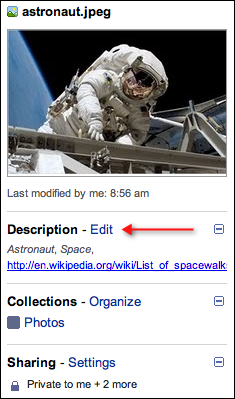
What you add to the description, in addition to the contents of the doc itself, can be found when you use the search box in Google Docs. This opens up the possibility of using the description for keywords and tagging. So, if your description contains the words “Astronaut, Space” that file will show in your search results when you do a Google Docs search for “astronaut” or “space.”
Descriptions also allow you to add clickable links. If it’s important for you to reference a website on an item, simply copy and paste the URL into your description. When the details pane is open, you’ll be able to click the link.
You can also make your description stand out with formatting:
A description is a great way to share information about your shared doc or collection to all of your collaborators, or add reference notes about an item. With the added benefit of search, clickable links, and formatting, descriptions become a powerful tool for sharing information and managing your growing documents list.
If you have other suggestions for ways you’ve used the description field, please add them in the comments below.
Posted by: Rebecca Steelman, Consumer Experience Specialist


Shanghai office worker Wang Kang had an innocent dream — to wear his 50-kilogram foam Iron Man exoskeleton to his workplace and impress his colleagues with his cosplay prowess. Did it work? Yes…perhaps a little too well. More »

Android: Free app SHREDroid really is like a shredder for Android phones. It doesn't perform a "secure delete" on a particular file or folder, but instead securely wipes the supposedly vacant spaces where deleted files used to be listed. If you're wondering why that means anything, it's because deleted files aren't really gone the moment you delete them—they're just not listed anymore. Something needs to be written over the data for it to really be gone, and that's what SHREDroid does with one tap of the finger. More »
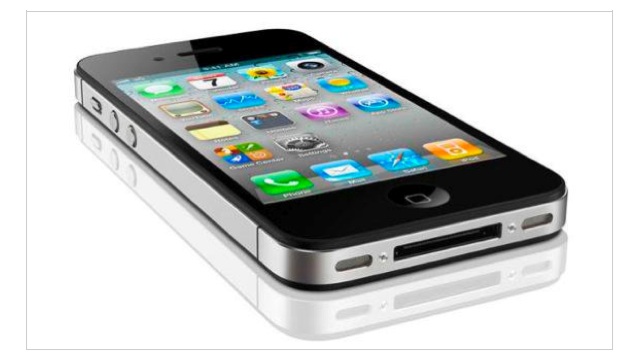
Nokia and Apple have been battling it out for market share, and also in the courts over accused patent infringements. One of the cases stem back to 2009 with Nokia suing Apple over the iPhone infringing on Nokia patents for GSM, UMTS and wireless LAN (WLAN) standards. Nokia stated then that Apple is “attempting to get a free ride on the back of Nokia’s innovation”.
Nokia has apparently spent over EUR 43 billion and has a collection of 10,000 patents. Today a press release went out stating the two companies have signed a patent license agreement, which results in a settlement of all patent litigation issues. No dollar amounts were released but they did note that Apple must hand over a one-time payment and on-going royalties to Nokia.
This changes everything. Steve Jobs probably isn’t the happiest CEO today, but Nokia’s CEO Stephen Elop is. “We are very pleased to have Apple join the growing number of Nokia licensees. This settlement demonstrates Nokia’s industry leading patent portfolio and enables us to focus on further licensing opportunities in the mobile communications market.”
Related posts:
 Jethro Nededog