
-
Apple iPhone 4 “coming soon” to SaskTel
Good news have arrived for SaskTel customers – they have updated their site to show the Apple iPhone 4 is coming soon. Unfortunately no other details are given. Hopefully it arrives before June when the iPhone 5 arrives. More here at SaskTel (Thanks to everyone who sent this in!) Related posts:microSIM cards coming to SaskTel […]
Related posts:
- microSIM cards coming to SaskTel soon… so will the iPhone 4?
- SaskTel now saying network launch is “mid- 2010″ and only in talks with Apple about iPhone
- Apple sells 1.7 million iPhone 4s… coming to Canada “by the end of July”
-
TorrentButler Is a Visual, Movie-Based Torrent Discovery Engine [BitTorrent]

The internet is full of BitTorrent search engines, but what if you’re just trying to decide what your weekend movie should be? TorrentButler presents new releases in a visually attractive fasion, linking to standard and high definition torrents for each. More »

-
Sask. raises $43M in oil, gas rights sale
Corporate interest in Saskatchewan’s oil patch remains strong, the provincial government says, following 2011’s first sale of oil and gas rights.
-
Facebook, Google mull $10B Twitter buy
Technology titans Google and Facebook are kicking the tires on social media site Twitter and considering a bid for the company, a report in the Wall Street Journal said Thursday.
-
Internet Explorer 9 RC now available to download, tracking protection in tow (update)

The Internet Explorer 9 beta pleasantly surprised us with Microsoft’s renewed competitiveness in the web browser wars, and the pinnable, hardware-accelerated experience is getting even better today — you can download the IE9 release candidate right now, which streamlines and beautifies the tabbed browsing layout considerably, adds those previously promised, fully customizable tracking protection lists for privacy and freely toggled ActiveX filters, as well as an updated Javascript engine, geolocation support via HTML5, the ability to pin web apps to the taskbar, and a host of assorted speed and functionality improvements. Find the files you need at our source link below, and let us know if the Beauty of the Web captivates you this time around.
Update: We spoke to Microsoft IE9 privacy guru Andy Ziegler, and learned to our dismay that tracking protection lists won’t actually be included in the browser per se; rather, the company’s created a feature where you can generate your own lists or download ready-made one from providers like TRUSTe. The thing is, IE9 won’t suggest one for you, or even curate a group of them when you install — you’ll need to put on your power user hat and do the legwork there yourself.
Internet Explorer 9 RC now available to download, tracking protection in tow (update) originally appeared on Engadget on Thu, 10 Feb 2011 13:20:00 EDT. Please see our terms for use of feeds.
Permalink
 Download Squad |
  Microsoft | Email this | Comments
 -
More “I do"s, less “to-do"s: wedding planning simplified
Cross-posted on the Official Google Blog and the Google Photos Blog
For many, your wedding day is one of the biggest, most momentous days of your life. The perfect dress, the right tuxedo, the proper shade of blue, the three-tier cake with chocolate fondant, and all of your closest family and friends—these are just a few of the many things you might think about for your special day. Although there’s much to consider and a lot of work to do, the payoff is great: it’s one of the happiest days of your life.To help you plan this important day we’ve created wedding-specific templates in Google Sites, Google Docs and Picnik, and gathered tips and tricks for using these and other Google products at google.com/weddings. From wedding websites to save-the-date cards, these tools simplify wedding planning, letting you focus your time on the fun things—like tasting cakes!
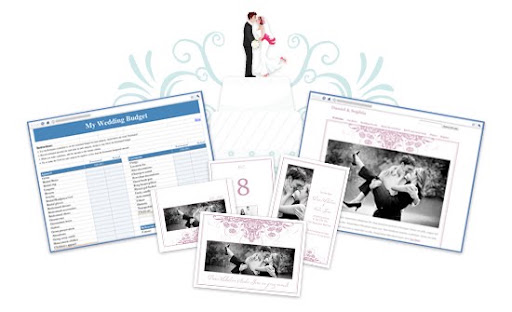
We teamed up with renowned wedding planner Michelle Rago, who provided her insight and creativity to guide the designs you’ll find on this new site. Michelle also shared her experience to provide tips and advice to keep your guests comfortable and you sane.
We’re also hosting a wedding sweepstakes, so if you’re getting married in the next year you can enter for a chance to win $25,000 towards your dream wedding (see Official Rules). Plus, Michelle Rago and her team will advise the winning couple on location, flowers, food and other design elements to create a day that is uniquely their own.Visit google.com/weddings to start planning, or share the site with your favorite betrothed couple and help them on their way to wedded bliss.
Posted by: Lisa Conquergood, Senior Product Marketing Manager
-
Set Up Google’s Two-Step Verification Now for Seriously Enhanced Security for Your Google Account [Google]

Google just launched two-step verification for all Google accounts, a system which makes your Google/Gmail account—the account possibly containing the lion's share of your private communication online—considerably more secure. In fact, we'd encourage everyone who uses Gmail (the @gmail version or your Google Apps version) as their primary email provider to start using this feature as soon as possible. Here's why, and then how. More »

-
Augmented reality helps you fix your printer
 Augmented reality (AR) company Metaio will show a demo at next week’s Mobile World Congress in which AR on your mobile phone shows you how to change a printer toner cartridge.
Augmented reality overlays digital information over your view of the physical world in a mobile device’s camera view
The printer demo is significant for a couple of reasons: the application of mobile AR to a service and maintenance scenario, and the sophisticated technology used.
Metaio has a division which works with industrial clients like the car company Volkswagen. For example, a 3D model of a new vehicle can be superimposed over a digital photo of the actual factory environment to help with plan the assembly room layout. This kind of application requires very precise 3D modeling and overlay of the AR image over the real-world image.
For the printer demo, Metaio’s software creates a virtual 3D point cloud (see the video) from the image of the printer in the mobile phone’s camera view. This point cloud defines the structure of the printer. The cloud is then compared to a markerless tracking reference (a sort of “signature” created from 3D CAD models of the printer) so the software can recognize the correct printer model. The software then renders AR objects over the camera view of the printer in real time and with the correct scale in order to instruct the user on how to change the cartridge.
Most mobile AR applications so far have been simple, sometimes gimmicky and according to some commentators not even real AR. Now that the initial novelty has worn off, Metaio is convinced that AR users are looking for more useful applications and, in areas like games and media, higher production values. Replacing the service manual certainly falls into the category of useful.
Improving AR graphics for applications like games is made difficult by the already high processing and battery power required by AR. Metaio worked with ST-Ericsson’s latest dual-core smartphone platform, the U8500, to optimize its AR software to run on that chip set (the printer demo can be seen in the in the ST-Ericsson partner zone at Mobile World Congress).
This increased the frames per second of the AR image rendering from about 18 frames/second on an off-the-shelf smartphone to 30 frames/second on ST Ericsson’s platform, resulting in a much smoother and more accurate AR experience.The company thinks that such partnerships between hardware and AR software vendors are essential to push mobile AR technology forward.
Although the functionality shown in the printer demo is not yet available in Metaio’s mobile AR browser Junaio, the company has been busy adding other interesting features like image recognition and visual search (similar to Google Goggles) including face recognition.
Metaio is based in Munich, Germany, was founded in 2003 and has around 65 employees. It is privately funded.
Tags: AR, augmented reality, mobile, printer
Companies: Metaio, St Ericsson, Volkswagon
-
Here’s a Super Simple Trick to Defeating Fake Anti-Virus Malware

You might be wondering why we have a screenshot of what appears to be AVG Anti-Virus, but is in fact a fake anti-virus malware that holds your computer hostage until you pay them. Here’s a really simple tip to defeating these types of malware, and a quick review of other options.
Not sure what we’re talking about? Be sure to check out our previous articles on cleaning up fake antivirus infections.
- How To Remove Internet Security 2010 and other Rogue/Fake Antivirus Malware
- How To Remove Antivirus Live and Other Rogue/Fake Antivirus Malware
- How To Remove Advanced Virus Remover and Other Rogue/Fake Antivirus Malware
- How To Remove Security Tool and other Rogue/Fake Antivirus Malware
So what’s the problem? Can’t you just run a anti-virus scan? Well… it’s not quite that simple. What actually happens is that these pieces of malware block you from running almost anything on your PC, and often prevent you from running apps from a Flash drive, with an error like this:

Once you encounter this error, there’s a couple things you can do. The first one is almost stupidly simple, and works some of the time

-
WiFi-only Motorola Xoom tablet does its FCC duty, silver version spotted in Dubai (video)

We heard some weird reports over the weekend that the 3G Motorola Xoom tablet couldn’t be sold unless you bought at least one month of wireless data. That, plus the groan-inducing $800 MSRP, is surely giving some potential buyers a wee bit of pause. This might help. Crossing the wires at the FCC is what appears to be a WiFi-only version of the Xoom, called a “wireless tablet with embedded WLAN.” It’s lacking a 3G radio so, unless Moto has another trick up its sleeves, this is probably that. Obviously any speculation on price would be highly… speculative, but here’s to hoping ditching that modem brings this thing down a Benjamin or so. Also spotted, this time in Dubai but also embedded below, was a silver version of the Xoom, sporting a two-tone back that will nicely complement your Casio Data Bank calculator watch. No word on whether we’ll get that on these shores, but we hope so. Variety is, dear readers, the spice of life.
WiFi-only Motorola Xoom tablet does its FCC duty, silver version spotted in Dubai (video) originally appeared on Engadget on Thu, 10 Feb 2011 07:31:00 EDT. Please see our terms for use of feeds.
Permalink
wireless goodness | FCC, t-break | Email this | Comments -
WiFi BlackBerry PlayBook priced at $500 in Office Depot’s systems

Now this is what we’re talking about! Sure, we’ve been well aware of RIM’s plans to take the PlayBook to Sprint (and maybe even Verizon), but if this Office Depot listing is to be believed, a 16GB, WiFi version of the 7-inch tablet will also be heading to some retailers for the very competitive price of $499.99. It’s really the first solid PlayBook pricing we’ve seen, and we’ve got to admit, we’re happy to see that RIM followed through on its word to offer the touchscreen slab for under $500. (And hey, it sure beats the leaked Xoom pricing we saw earlier this week.) Unfortunately, the screenshot above doesn’t reveal much more, although it lists the QNX-powered slate as hitting Office Depot stores on “Week 17,” which is the last week in April according to our calendar. That’s a bit later than the March date we’ve heard before, but either way we’re waiting for spring to start and hoping Office Depot’s cut out its shady practices so we can snatch up one of these ASAP.
[Thanks, Braden]
WiFi BlackBerry PlayBook priced at $500 in Office Depot’s systems originally appeared on Engadget on Wed, 09 Feb 2011 19:11:00 EDT. Please see our terms for use of feeds.
-
HP posts complete ‘Think Beyond’ event video
 It may not have provided a live stream, but HP has at least quickly turned around a complete video of today’s nearly two hour-long “Think Beyond” event in San Francisco. Head on past the break to see the announcements of the TouchPad, Pre 3 and Veer as they happened, along with few other surprises. Unfortunately for those watching at home, it seems HP wasn’t able to think beyond 360p.
Continue reading HP posts complete ‘Think Beyond’ event video
HP posts complete ‘Think Beyond’ event video originally appeared on Engadget on Wed, 09 Feb 2011 19:01:00 EDT. Please see our terms for use of feeds.
-
INQ launches Facebook-focused Cloud Touch and Cloud Q phones
 We’ve been hearing a fair bit of buzz about INQ and Facebook getting all cozy-like and creating a Facebook phone. Well, that’s only half right: INQ has made its first Android 2.2 device, really focused on Facebook integration, and seem to have really nailed it. The two devices are the INQ Cloud Touch (pictured above) and a QWERTY device with exactly the same specs — but, with a QWERTY keypad, of course — named the Cloud Q. Features include triband HSPA for the European folks, 3.5-inch capacitive touchscreen display, 5 megapixel autofocus camera, all manner of mail support including Exchange, what appears to be legendary Facebook support, and Spotify onboard as the de facto music app with a dedicated key.
INQ’s two Cloud devices are apparently the first mobiles to use the Facebook Social Graph API, which will see all your most important Facebook content appear on your set’s homescreen. Another bonus in here is the keyboard tech — based on SwiftKey — which will not only predict what word you’re typing, but what words you may type based on some AI wizardry, science, and your writing tendencies. The Cloud Touch is set to launch in April at Carphone Warehouse and BestBuy in the UK with the Cloud Q landing sometime in Q3. We’re just about wheels-up for Barcelona to check out the haps at MWC next week, and you can be sure we’ll be all over these sets as soon as we land.
INQ launches Facebook-focused Cloud Touch and Cloud Q phones originally appeared on Engadget on Wed, 09 Feb 2011 18:41:00 EDT. Please see our terms for use of feeds.
Permalink | | Email this | Comments
-
Diet Soda Linked To Increased Risk Of Stroke?
Diet soda may have fewer calories, but there may be more risks, too.
-
HP’s Touch to Share eyes-on, starring the TouchPad and HP Pre 3 (video)

Tablet manufacturers love to talk about how magical their devices are, but HP’s Touch to Share truly is something else — you simply bump a paired Pre 3 into an HP TouchPad slate, and the data beams over the air — in this case, loading a website URL a la Chrome to Phone. While it uses the same induction coil technology to connect the twain as HP’s Touchstone dock (and Bluetooth to actually pipe those packets through the ether), you don’t actually need a Touchstone to make the magic happen this time around, only a pair of compatible devices. Representatives tell us that you do have to pair them beforehand, as well — you wouldn’t want an errant Pre 3 owner to swipe your banking session while you’re on the go, now would you? Don’t miss the video above.
Nilay Patel contributed to this report.
HP’s Touch to Share eyes-on, starring the TouchPad and HP Pre 3 (video) originally appeared on Engadget on Wed, 09 Feb 2011 17:22:00 EDT. Please see our terms for use of feeds.
Permalink | | Email this | Comments
-
HP TouchPad vs. iPad vs. Xoom vs. PlayBook: the tale of the tape

At last, the webOS-empowered TouchPad, HP’s answer to the growing tablet market. And make no mistake, it’s coming in with guns blazing — specs-wise, the slate stands up pretty well to the competition currently in play (e.g. iPad) and the other up-and-comers not quite out the gate (e.g. Motorola Xoom and BlackBerry PlayBook). Stacked side-by-side, it’s clear Apple’s entry is lacking a bit in both memory (256MB vs. 1GB for everyone else) and front-facing camera — not that we expect that to be the case for all of 2011. When it all comes down to it, what’ll set these slates apart will be the platforms and software themselves — should make for an interesting summer, no? In the meantime, for the nitty-gritty on technical specifications, venture past the break.
Continue reading HP TouchPad vs. iPad vs. Xoom vs. PlayBook: the tale of the tape
HP TouchPad vs. iPad vs. Xoom vs. PlayBook: the tale of the tape originally appeared on Engadget on Wed, 09 Feb 2011 16:30:00 EDT. Please see our terms for use of feeds.
Permalink | | Email this | Comments
-
HP TouchPad first hands-on! (updated with video!)

By now, you know how HP’s new slate compares to the crowd — now, see how it looks up close and personal. We just got our hands on that dual-core Palm webOS tablet here in San Francisco, and it’s a beaut, with a slim black profile that highlights the brilliant 9.7-inch screen. We’ll be back in a jiffy with some impressions of that newfangled Tap to Share and card-based multitasking, but for now, simply feast your eyes on our gallery below.
Update: Video time! Check it after the break.
Gallery: HP TouchPad first hands-on!


Continue reading HP TouchPad first hands-on! (updated with video!)
HP TouchPad first hands-on! (updated with video!) originally appeared on Engadget on Wed, 09 Feb 2011 15:35:00 EDT. Please see our terms for use of feeds.
Permalink | | Email this | Comments


