Google posts an amazing 886 percent year-to-year growth in sales
Microsoft algorithm uses six-axis motion sensors to fix blurry snapshots, inadvertently pimping your ride

Trying to snap a shot of your cherry red Mazda, but can’t keep your hands still? You’ll find all the tech you need to smooth things out in an iPhone 4 or (MotionPlus-equipped) Nintendo Wiimote. Experimenting with 6DOF inertial measurement sensor packages, scientists at Microsoft Research have developed a software algorithm that literally records your exposure-destroying shake via accelerometer and gyroscope, then magically removes the blur by canceling it out. While the technique still isn’t perfect — spot ghostly line above some of those background cars — the Microsoft researchers compared their results to other in-progress algorithms, and we think you’ll agree this new solution presents the best results by far. It’s a shame Microsoft doesn’t say when we’ll see the tech in a spiffy DSLR attachment, or better yet a cameraphone. See before and after animated GIFs after the break, and find high-res comparison images and much more at our source link.
Microsoft algorithm uses six-axis motion sensors to fix blurry snapshots, inadvertently pimping your ride originally appeared on Engadget on Mon, 02 Aug 2010 12:44:00 EDT. Please see our terms for use of feeds.
Permalink  Slashdot |
  Microsoft Research | Email this | Comments
Lindsay Lohan released from jail
Lindsay Lohan has been released from jail, but is now required to immediately begin a three-month stint in rehab.
China to build ginormous buses that cars can drive under (video)

Seriously, this is the future that China’s envisioning: huge friggin’ buses engulfing smaller cars on the road. Despite the silly picture and the eccentric “3D Express Coach” branding, this cunning project by Shenzhen Huashi Future Car-Parking Equipment actually makes sense. The idea is to make use of the space between regular-size cars and bridges, thus saving construction costs as well as minimizing congestion impact by allowing cars to drive underneath these jumbo buses. Fancy hitching a ride? You better start planning your move to Beijing’s Mentougou district, which is where Huashi will commence building its first 186km of track at year’s end. For now, enjoy the Chinese demo video after the break (translation text at source link).
Continue reading China to build ginormous buses that cars can drive under (video)
China to build ginormous buses that cars can drive under (video) originally appeared on Engadget on Mon, 02 Aug 2010 09:13:00 EDT. Please see our terms for use of feeds.
Did you know: Microsoft Office is licensed for two PCs?
In a twitter reply by Microsoft Australia (MSAU) today, we were reminded of a Microsoft Office license term that many people aren’t aware of. The reply to a tweeted question stated that whilst the Home and Student edition of Microsoft Office is licensed for installation on up to three machines,…
Twilight: For Guys!!
Flood disaster aid extended in Yorkton
Residents of Yorkton, Sask., who are still out of their homes after a flood July 1 will continue to receive disaster aid from the province.
No hike to minimum wage in Sask.
The provincial government is holding the line on Saskatchewan’s minimum wage, keeping it at $9.25 for the foreseeable future.
Stadium funding answer coming, Cheveldayoff says
The provincial government is hoping to have some answers about the new stadium proposed for Regina within a month, says Ken Cheveldayoff, the cabinet minister responsible for the project.
Group Video Chat With Family and Friends For Free
Whether it’s a graduation or new birth, there are many special occasions in life that we’d like to be present for but can’t due to distance. When a call doesn’t cut it, here’s how to video chat with up to 20 friends or family with Tokbox.
Video Chat can be complicated to setup, especially if you want to video chat with multiple people. There are numerous web apps that offer free, limited plans for group video chat, but they are almost all aimed at the enterprise market and are fairly complicated to use. Whether you’re a geek or have never setup a webcam, complicated tools never make the job easier. We were excited to find that Tokbox is very simple to use for group video chats, and worked great. Keep reading to see how it works, and then go try it out with your family and friends!
Getting Started
First, you’ll need to get a Tokbox account. Head over to the Tokbox website (link below), and click the Sign Up button under Video Chat.
![sshot-2010-07-29-[13-13-32]](http://www.howtogeek.com/wp-content/uploads/2010/07/sshot20100729131332.png)
Enter your name, age, email and password. Agree to the terms of use, and then click Submit.
![sshot-2010-07-29-[13-13-52]](http://www.howtogeek.com/wp-content/uploads/2010/07/sshot20100729131352.png)
That’s all, folks; you’re all ready to make video calls. Click the call now button at the top of the page to go ahead and invite friends to chat with you.
![sshot-2010-07-29-[13-15-25]](http://www.howtogeek.com/wp-content/uploads/2010/07/sshot20100729131525.png)
You may have to wait a few moments for the video interface to load. Note that the entire TokBox interface is powered by Flash, so you’ll have to have flash installed on your computer to use it.
![sshot-2010-07-29-[13-15-54]](http://www.howtogeek.com/wp-content/uploads/2010/07/sshot20100729131554.png)
Once it’s loaded, Flash will ask to access your camera and microphone. Click Allow, and if you’d rather not have to answer this again in the future, check the Remember box as well. Now click Close to get on with your video chat.
![sshot-2010-07-29-[13-16-09]](http://www.howtogeek.com/wp-content/uploads/2010/07/sshot20100729131609.png)
Enter your friends’ email addresses and add an invitation message, then press Invite Contacts.
![sshot-2010-07-29-[13-18-08]](http://www.howtogeek.com/wp-content/uploads/2010/07/sshot20100729131808.png)
Alternately, click one of the social media icons on the right to invite your friends from Facebook, Twitter, or MySpace to your video chat.

You’ll now see your video on the left side, and blank area on the right while you’re waiting on your friend to arrive.

You may see some tips for things to do to help your experience, but generally everything just worked in our test without tweaking.

Joining a Video Chat
If you’ve been invited to a TokBox chat, you’ll receive a link in an email or social network message. Click the link to join your friend’s chat.
![sshot-2010-07-29-[21-20-06]](http://www.howtogeek.com/wp-content/uploads/2010/07/sshot20100729212006.png)
Click Allow to let TokBox access your camera and microphone so your friend can see and hear you in the chat.
![sshot-2010-07-29-[21-18-25]](http://www.howtogeek.com/wp-content/uploads/2010/07/sshot20100729211825.png)
Finally, enter your name and click Enter video chat now.
![sshot-2010-07-29-[21-18-45]](http://www.howtogeek.com/wp-content/uploads/2010/07/sshot20100729211845.png)
After a few moments, you and your friend will be chatting together with live audio and video. You can see information about your internet connection by hovering over the video. Up to 20 people can chat at once, so if there are more participants the video windows will resize to fit all of the videos.
![sshot-2010-07-29-[21-22-06]](http://www.howtogeek.com/wp-content/uploads/2010/07/sshot20100729212206.png)
Alternately, if your computer doesn’t have a webcam, your video box will show a mic icon and say Voice only. You can still see your friends’ videos, but they won’t be able to see you.

You can also text chat with your family and friends from the text box underneath the video chat. This will help you troubleshoot issues with audio or video.

Extra Features
Tokbox also makes it easy for you to share videos and pictures with your friends. Click the TV icon on the top of the chat window to add a video from YouTube or a picture from Flickr or Picasa to show everyone in your chat.

Once you’ve exited a video call, you can see your recent calls on the dashboard, and can even easily call someone back.

You’ll see a countdown timer before the call starts, so if you accidently clicked call you can always cancel before your video call starts.

You can add your contacts from social networks to quickly invite them to a video call from the dashboard as well.

Or, if one of your friends calls you while you’re logged into TokBox, you’ll see a nice preview asking if you want to accept or ignore the call. Click Accept to start video chatting with the caller.

Or, you can change Tokbox settings if you like. Click the Account link on the top right, and then select Edit my profile.

Here you can add personal info, as well as change your TokBox username. You can share your username with friends and family so they can quickly call you anytime by visiting tokbox.com/your_name.
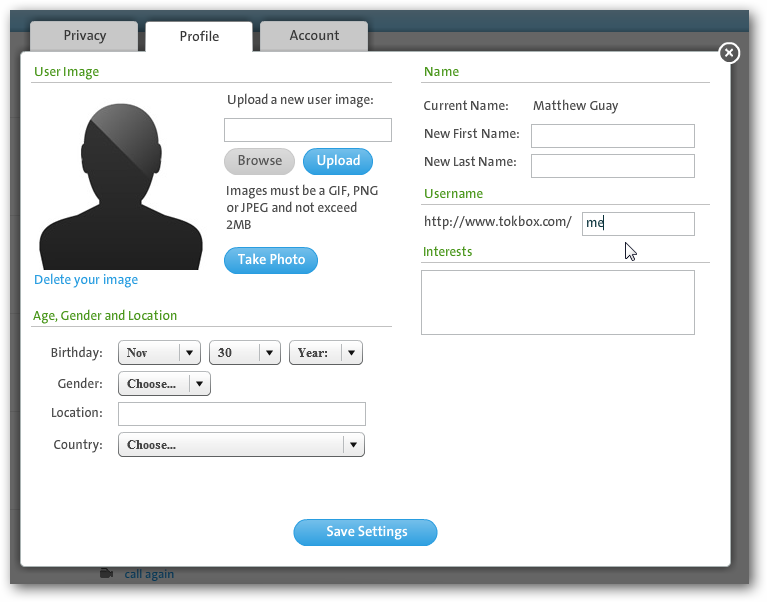
Conclusion
While Skype is a great service for making voice and video calls to individual people, it’s currently difficult or impossible to video chat with several people at once. TokBox makes it incredibly simply to video chat with your family and friends, and since up to 20 people can chat together they all can join in at the same time. Whether you want to discus reunion plans or simply have an online reunion, you can quickly get your family in the same “room” with TokBox even if they’re not tech savvy. This might come in handy if you have a loved one stationed overseas who aren’t tech savvy. We’ve tried many different services, but few were as easy to use as Tokbox. Give it a try, and let us know how it worked for you!
Link

“I Gotta Feeling” surpasses 6 million digital downloads
The Black Eyed Peas’ hit song I Gotta Feeling, which has been ranked as the top-selling iTunes track of all time, has now become the first song to be legally downloaded more than 6 million times.
Chrome Dev Channel Enables Extension Sync by Default [Updates]

Reader choebear writes in to point out that if you’re using the Dev channel of Google Chrome, you no longer need to use the command-line switch to enable extension sync in Chrome—extension syncing is now enabled by default. To use it, just open Chrome's Options/Preferences and head to the Personal Stuff tab. Looks like this actually happened earlier this month and it slipped past us, but the default integration likely means extension syncing is getting closer to the stable release, which is great news. More »

YouTube Increasing Upload Limit from 10 to 15 Minutes [YouTube]

Since YouTube’s launch, the longest video you could upload was 10 minutes. No longer! Boing Boing reports that in the near future, that limit will rise to 15 minutes. More »

Chrome Dev Channel Enables Extension Sync by Default [Updates]

Reader choebear writes in to point out that if you’re using the Dev channel of Google Chrome, you no longer need to use the command-line switch to enable extension sync in Chrome—extension syncing is now enabled by default. To use it, just open Chrome's Options/Preferences and head to the Personal Stuff tab. Looks like this actually happened earlier this month and it slipped past us, but the default integration likely means extension syncing is getting closer to the stable release, which is great news. More »
Robocop Remake Not Happening!
Robocop Remake Not Happening! – MGM can add another causality to their list of delayed if not canceled films. The Hobbit still hasn’t been green lit, James Bond has been put on hold
Apple’s Overheating Problem Boils Over [Apple]

Panasonic to spend $9.4b on buying out Sanyo and PEW shares, posts robust quarterly profits

Clearly dissatisfied with what it sees in the mirror, Panasonic has today announced its decision to bulk up. A new share issue expected to raise ¥500 billion ($5.7 billion) will be enacted soon as part of raising the cash to complete the buyout of Sanyo Electric and Panasonic Electric Works. Don't ask us why a company named Panasonic has to buy another company with Panasonic in its name, but them's the facts. The total outlay is expected to come in at around $9.4 billion and is justified by Panasonic as fundamental to its future strategy of expanding into environmentally friendly tech and developing a three-pronged operating paradigm by 2012. The Osaka-based company is also reporting a ¥43.7b ($498 million) profit for the last quarter — a major upswing from a ¥53b loss in the same period last year — though that's information the market seems to have ignored. Panasonic shares have plunged down 7.7% in the immediate aftermath of the acquisitions being announced, while Sanyo's have shot up. Click past the break for the novella-sized press release explaining the details of the deal.
Panasonic to spend $9.4b on buying out Sanyo and PEW shares, posts robust quarterly profits originally appeared on Engadget on Thu, 29 Jul 2010 06:44:00 EDT. Please see our terms for use of feeds.
Old Spice guy cast in Jennifer Aniston film
Whether he’s on a boat or a horse, one thing is certain: The Old
Spice guy is on a roll.
How a Tiny Magnet Could Produce a Force Field Big Enough To Protect a Space Ship [Forcefields]

While many hurdles are keeping us stuck here on Earth, our solar system’s deadly radiation is chief among them. But scientists now think that a thumb-sized magnet could produce a force field big enough to shield an entire spaceship. More »
Thinner and Lighter Kindle Comes with Wi-Fi and Starts at $139 [Kindle]

It may have taken longer than expected, but a replacement for the Kindle 2 has arrived. The addition of Wi-Fi and an aggressive $139 starting price make the new eReader a formidable upgrade. More »