Your web drive SkyDrive offers 25 GB of free storage that you can use from everywhere. However, uploading and accessing its contents from your web browser can get tiring. Unless you connect Windows Live SkyDrive to Windows Explorer.
-
Windows 7 way hotter than Vista off the line, now more popular than all OS X versions
 We learned back in November that Windows 7 was having a much (much!) better first few days in retail than Vista did when it launched, but now that the system has had a full quarter and change to make an impression, it looks as if that growth isn’t slowing down. According to new figures from Net Application, Win7 is achieving a higher level of market penetration in a faster amount of time than Vista did; after a month, Vista was stuck at 0.93 percent, while Win7 nailed the 4 percent mark. After two months, Win7 jumped to 5.71 percent, while Vista was barely over 2 percent after the same amount of time. ‘Course, the newest version of Windows had a holiday season to help it out right from the get-go, but there’s still no denying that people are flocking to the system even now. What’s most interesting, however, is that the overall market share of Windows 7 alone has now surpassed all OS X versions that are being tracked (10.4, 10.5 and 10.6), so put that in your pipe and smoke it. Smoke it long and hard.
Windows 7 way hotter than Vista off the line, now more popular than all OS X versions originally appeared on Engadget on Thu, 21 Jan 2010 21:14:00 EST. Please see our terms for use of feeds.
-
Riders promote Taman, reward Miller
The Saskatchewan Roughriders promotoed Brendan Taman to general manager Thursday and named head coach Ken Miller their vice-president of football operations.
-
Windows 7 growing faster than Vista, overtakes Mac OS
Windows 7 has already managed to capture more market share than all the Mac OS versions combined, and it’s also doing far better than Vista did in its early months. Copious charts inside.
-
Google Docs Now Allowing Any Type of File Upload [Screenshots]
 The semi-GDrive upload feature announced earlier this month has gone live, giving everyone with Google Docs a 1GB space to store, and share, files of any kind. Here’s a look at how it works.
Log into your Google Docs account, and you should see the notification pictured above, with a more streamlined “Upload” button next to the Create New item.
 You’ll arrive at the upload page, which offers a few neat features beyond simple file choosing. Check a box, and you can automatically convert your Word and other documents to “Google Docs format,” for actual online editing abilities, or you can just keep them stored for sharing and later downloading. That’s a nice control option for those who use Google Docs as a universal file manager, but don’t always love its conversion skills with certain formats. You can also pre-place your files in particular folders for better organization.
 After uploading your files or documents, you can see what percentage of your 1024 MB, or 1 GB, you’re using, and get links to share or send those files to others, including easy-to-fill Google Contacts.
 Where did your documents go, though? They’re in the “All Items” view, and can be shared, downloaded, or renamed, just like a regular file.
How do you like Google Docs’ file storage and sharing capabilities, compared to its many competitors? Speaking of which, it might be time to update that chart, no? Tell us how you’re finding the semi-GDrive useful, or not, in the comments.
Uploading any file : Uploading and exporting [Google Docs Help via Smarterware.org]

-
How To Remove Advanced Virus Remover and Other Rogue/Fake Antivirus Malware
If you have a PC infected with Advanced Virus Remover, you’ll probably find that this is a tough one to get rid of. Thankfully we’ve got the instructions to help you defeat this terrible virus.
Advanced Virus Remover is one of many fake antivirus applications like Antivirus Live, which are really just rogue viruses that hold your computer hostage until you pay the ransom money. They tell you that your PC is infected with loads of viruses, even though it’s the only virus on your computer. The biggest problem with these things is that they block you from doing almost everything—you can’t use task manager, Safe Mode, or even install a real malware removal tool.
Advanced Virus Remover is Terrible!
This thing just covers your PC with messages about viruses that they claim you have…

There are popups, messages, and just dozens of windows that open…

Their goal, of course, is to get you to pay them.

Advanced Virus Remover is tricky… if you open an application more than once, it’ll block you from opening it again, preventing you from installing any anti-malware tools (I tried both SUPERAntiSpyware installed edition and MalwareBytes, no luck) Note that it also changes your wallpaper.

Advanced Virus Remover also prohibits you from heading into Safe Mode, where you at least might have a better chance of getting rid of it.
Removing Rogue Fake Antivirus Infections (General Guide)
There’s a couple of steps that you can generally follow to get rid of the majority of rogue antivirus infections, and actually most malware or spyware infections of any type. Here’s the quick steps:
- Try to use the free, portable version of SUPERAntiSpyware to remove the viruses.
- If that doesn’t work, reboot your PC into safe mode with networking (use F8 right before Windows starts to load)
- Try to use the free, portable version of SUPERAntiSpyware to remove the viruses.
- Reboot your PC and go back into safe mode with networking.
- If that doesn’t work, and safe mode is blocked, try running ComboFix. Note that I’ve not yet had to resort to this, but some of our readers have.
- Install MalwareBytes and run it, doing a full system scan. (see our previous article on how to use it).
- Reboot your PC again, and run a full scan using your normal Antivirus application (we recommend Microsoft Security Essentials).
- At this point your PC is usually clean.
Those are the rules that normally work. Note that there are some malware infections that not only block safe mode, but also prevent you from doing anything at all. We’ll cover those in another article soon, so make sure to subscribe to How-To Geek for updates (top of the page).
So, Let’s Remove Advanced Virus Remover!
Turns out that the answer to getting rid of this virus is really simple—you’ll just need to grab the free, Portable edition of SUPERAntiSpyware, which we’ve featured as our favorite must-have spyware removal tool, and put it on a flash drive (from another computer).
Then open it up on the PC, making sure to run the scan immediately. Don’t close it and re-open it, or Advanced Virus Remover will figure out what you’re doing and block you!

Once it’s all done, it’ll get rid of the bad stuff.

Then you’ll be prompted to reboot, which you should probably do.
If Advanced Virus Remover Blocks SUPERAntiSpyware
If you have an issue running SUPERAntiSpyware, you can try and use the following technique. Open up the Windows Run box with the Win+R shortcut key, or through the start menu. Then type in the following commands, hitting enter after each one.
taskkill /f /im winupdate86.exe
taskkill /f /im winlogon86.exe
Note that this may or may not help… the goal is to try and shut down the processes that are blocking you, and malware changes filenames all the time. You can also open up Windows Explorer, head into the Windows\System32 folder, and try and locate the bad processes there (hit the properties screen on some recent, odd-looking files), then use the taskkill command to get rid of them. This technique is how I usually figure out what the virus is hiding under, so I can easily kill it with just a few keystrokes.
Cleanup the Leftovers!
Since I never like to fully trust a single anti-malware tool, I usually run multiple passes from multiple malware removal tools. I highly recommend running a second pass with the free edition of Malwarebytes Anti-Malware. (see our previous article on how to use it).

You might notice some more messages popping up from the virus—in this case, my SUPERAntiSpyware definitions were out of date (because I wrote this article before the official portable version came out, so I was using my own hack to create a portable edition).
Just ignore any messages, and continue with the scan, letting Malwarebytes remove everything else.

At this point you’ll want to reboot your system, and then install Microsoft Security Essentials and run another full scan. Can’t hurt to be too cautious! We also highly recommend Microsoft Security Essentials for real-time protection against these types of things.
Note: If you used a thumb drive at any point during this process, you should make sure and scan that as well—I’ve had viruses hop over to the thumb drive, ready to infect the next machine.

Similar Articles Productive Geek Tips Latest Software Reviews Tinyhacker Random Tips -
2011 Ford Mustang GT Named As Daytona 500 Pace Car
The 2011 Ford Mustang GT is getting some major upgrades this year, including a new 5.0-liter 412-horsepower engine, and that’s enough to make it the pick for the pace car of the 2010 Daytona 500. It is the first Ford car picked to pace the race in 40 years.
-
HP shows off ‘wall of touch’ concept, touching optional

We’re not quite sure why HP didn’t bother setting one of these up at CES, but the company’s so-called “wall of touch” is apparently already in use by a handful of companies in prototype form, and HP has now shown it off to The Wall Street Journal. Interestingly, while you’re welcome to touch the wall all you want, you don’t actually have to, as it makes use of a camera-based system and a magnetic strip to detect where you’re pointing and when you near the wall. Of course, HP is mostly pitching this one towards companies intending to use these in public spaces (Continental Airlines has one of the first at the Houston Airport), but HP does say that if there’s enough interest it will turn it into a “mainstream product” — albeit a mainstream product that costs anywhere from “a couple thousand dollars” to $100,000 for something with more advanced features like HD video conferencing. Head on past the break for a quick video overview.
Continue reading HP shows off ‘wall of touch’ concept, touching optional
HP shows off ‘wall of touch’ concept, touching optional originally appeared on Engadget on Tue, 19 Jan 2010 15:20:00 EST. Please see our terms for use of feeds.
-
Read Kindle Books On Your Computer with Kindle for PC
Do you already own a Kindle or thinking about purchasing one? To day we look at a free E-Reader app from Amazon that allows you to purchase and read books from the Kindle Store, and makes syncing your computer and Kindle easier.
Note: Windows Only. Mac version coming soon.
Kindle for PC
This handy E-Reader is completely free and installs quickly.

Once it’s ready to go, you’re prompted to sign into your Amazon account. If you don’t have an account and don’t care to sign up for one, you can continue without registering.

After signing in you will see the user interface with a couple of balloon tips to get you started. The interface is very slick and intuitive compared to other E-Readers out there.

After you have a book loaded, you’ll get navigation controls, bookmarking, and “Go To” which lets you jump to a particular section of the book.

There are 10 different font sizes available.

You can bookmark any page in the book as well.
![sshot-2010-01-18-[00-45-10]](http://www.howtogeek.com/wp-content/uploads/2010/01/sshot20100118004510.png "sshot-2010-01-18-[00-45-10]")
You can navigate through the pages with your mouse or simply use the arrow keys.

You can access the Jumplist on the Windows 7 taskbar and choose from recent books and other options.

Click on the Menu option on the upper right to access settings, sync items, manage your registered Kindle, and send feedback about the app.

Because it’s in Beta the developers want to hear from you how they can improve it.

Buy and Download a Book
To browse the Amazon store, click on Shop in Kindle Store from the Kindle for PC interface.

When you find something you like, click on the Buy now with 1-click button and make sure its set to deliver to your Kindle for PC.

Then on the order confirmation screen click on the Go to Kindle for PC button to pull up the E-reader.

The Home page of the Kindle comes up and you’ll see what books have been downloaded and can monitor the download progress of the one you just bought.

Notice in the lower left corner of the reader you’ll see that it’s synching and checking for new items.

Another cool thing about the Whisperync feature is it lets you go to the last page you read of a book on the PC, a kindle device, or the iPhone app. So no matter where you read your books, there won’t be the hassle of finding where you left off.

You can sync and check for new items at any time from the button next to the Menu.

Once you start getting a larger collection of books, you can sort them by Title, Author, and Most Recent.

It’s still in Beta, and there isn’t a search feature or the ability to make annotations yet, but overall it works pretty well and is easy to use.

Conclusion
As of this writing it will run on XP, Vista, and Windows 7 but they have a Mac version on the way. Amazon does say the ability to create notes, search, and rotate images in the near future. Another thing to mention is it can make use of the Windows Touch feature in Windows 7, so if you have a touch screen laptop it essentially turns it into a free Kindle too. If you’re holding off on buying a Kindle and want to get a feel for how it all works, Kindle for PC is a good way to get started.
Similar Articles Productive Geek Tips Latest Software Reviews Tinyhacker Random Tips -
Yawnlog Tracks Your Sleep Habits, Helps You Pinpoint Problems [Health]
 Sometimes the best way to find behavior patterns is to plot them out on a graph. Yawnlog helps identify your sleep problems by displaying your snooze data in chart-form.
To get started with the web-based sleep tracking service, sign up for a free account. You can start entering sleep data right away, including backdating entries to include info from nights past. Record the approximate time you fell asleep, the time you woke up, and the quality of your sleep each night; Yawnlog will do the rest. You can even add notes to each entry if you want to keep track of variables like how medication you’re taking might be affecting your slumber.
Yawnlog gives you an overview of your daily and average sleep debt (if any), as well as an average of how much you sleep per night and how close you are to meeting your nightly sleep goals. To see how your numbers compare, Yawnlog lets you connect with other users so you can see how much sleep time you get compared to your friends. You can make your profile and data public so others can find you, or mark it private so it’s accessible only to you.
Yawnlog isn’t as robust as some of the other sleep tracking apps we’ve mentioned, but it’s a great way to get some insight into what affects your sleep and what kinds of overall slumber habits you’re developing.
Yawnlog [via Fried Beef]
-
Xbox Live May Kill Cable With Live Streaming Sports From ESPN [Xbox Live]
 While you never necessarily needed cable, the one gap in internet video service has always been the lack of live sports. According to the NY Times, Microsoft and Disney are looking to change that, bringing ESPN to your Xbox Live.
Xbox Live users can already access dated content via Netflix, but this move towards live streaming would be a major one towards killing off cable once and for all. Especially since it targets a dedicated audience (sports fans) that has significant overlap with Xbox Live’s built-in gaming community.
The set-up would be similar to that of ESPN 360, which is already available from some ISPs. It would be based on a per-subscriber fee, and would include live streams of sporting events and possibly also interactive games that incorporate the ESPN brand. We’ll update with more details if and when they’re available. [NY Times]

-
Now You Can See Through Buildings Like Batman Bin Suparman [Augmented Reality]
Taking a hint from how the F-35 demon helmet maps multiple video feeds into a 3D space, a Carnegie Mellon University team has created an augmented reality car system to see through any massive obstacle. The objective: Avoid car collisions.
The system takes video from two cameras and mixes them into one, creating the illusion of being able to see through any object. A video processing system compares the feed from one of the cameras—installed in the car—to the other camera—installed on a street. By identifying common points between the two sources, the software can distort the street camera's video feed to match the driver's view. The matching perspective video gets projected onto the windshield, allowing the driver to see through walls in a natural, seamless way.
The Carnegie Mellon team, lead by Yaser Sheikh, thinks that the system could be easily implemented by tapping into the CCTV camera networks available in most major cities.
I’m glad to see that someone is thinking about making CCTV useful for everyone. On the other side, I wonder why people spend time creating these absurdly useful, accident-preventing augmented reality systems, instead of working in making a software like iNaked (NSFW) a reality. Get on the with the program, people. You need to get your preferences right. [New Scientist—Thanks Jimmy Flores]
-
Learning Windows 7: Manage Power Settings
In XP you probably already know how to manage the power settings for your system on a laptop or desktop. Today we take you through how to manage power settings and create custom plans in Windows 7.
There are new power management options that you can set up in Windows 7 compared to XP. You might want to change plans to save battery power on your laptop, or reduce energy consumption on a desktop at home or the office. Here we will look at how to manage and tweak the power plans, and how to create custom plans as well.
Power Settings
To access power plan options, type power settings into the search bar in the Start Menu and hit Enter.

The Power Options screen opens and from here you can select from three predefined plans–Balanced, Power saver, or High performance.

Click on Choose what the power button does and you can tweak several options such as Requiring a password on wakeup and what the power button on the computer does. If you set When I press the power button to Do nothing, you won’t have a problem with the PC shutting down when you accidently hit the power button.

To change any one of the predefined power plans click on Change plan settings.

Then you can change the amount of inactive time before the monitor is turned off or the computer goes into Sleep mode.
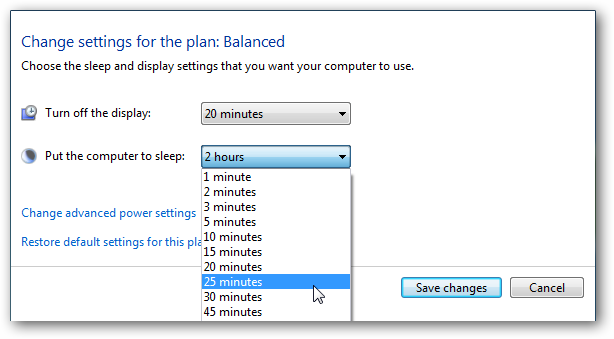
If you want to revert back to the default settings, simply click on Restore default settings for this plan.

Custom Power Plan
To create a custom plan, click on Create a power plan from the Power Options section.

In the Create a power plan window a predetermined plan that is closest to what you want, and give the plan a name.

In the next screen select the sleep and display settings you want to use and click the Create button.

After your plan is created you’ll see it under the preferred plans list.

If you click on Change advanced power settings, there are several options you can tweak. These settings should only be used by advanced users, as if you turn off the wrong thing, your computer may not function correctly. Choosing between the predetermined settings should be adequate for most users.

If you are having issues where your laptop is draining too much battery power, or you want to check the overall efficiency of power usage on your computer, check out our article Use PowerCfg in Windows 7 to Evaluate Power Efficiency.
![sshot-2010-01-14-[21-59-31]](http://www.howtogeek.com/wp-content/uploads/2010/01/sshot20100114215931.png "sshot-2010-01-14-[21-59-31]")
Conclusion
Windows 7 makes it easy to manage power settings for different computing situations. If you find your computer mysteriously shutting down or going into sleep mode, this should also help you determine why it is happening.
We also have a few other articles related to power management in Windows you might be interested in:
Disable Power Management On Windows 7 or Vista
Create a Shortcut or Hotkey to Switch Power Plans
Change the Windows 7 or Vista Power Buttons to Shutdown/Sleep/Hibernate
Similar Articles Productive Geek Tips Latest Software Reviews Tinyhacker Random Tips -
Avatar vs Modern Warfare 2: Billionaire Earnings Fight! [Movies]
 Avatar, the soon king of movies, vs Modern Warfare 2, the king of videogames. Here’s a look at how their earnings stack up by the numbers. The biggest surprise? Modern Warfare had a significantly larger ad budget. [Business Management]


